Handwriting OCR on Mac is genuinely hard to get right. Here's an honest look at every real option (free built-in, cloud, and local) so you pick the one that fits.
TL;DR: macOS Live Text is free but unreliable on real handwriting. Cloud tools like Prizmo can handle it, but your pages get uploaded to a third-party server. If you want private, local handwriting recognition that actually works without sending anything off your Mac, ZenOCR is our pick: it runs local AI models on Apple Silicon, no account, no network. One honest caveat: handwriting OCR is never perfect, and very messy cursive will trip up any tool.
Why Handwriting OCR Is Genuinely Hard
Before you blame the software, it helps to understand why handwriting is so much harder than printed text.
Printed fonts are consistent: every "a" in Times New Roman looks identical. Handwriting isn't. Your lowercase "e" might lean left; mine closes entirely. Two people writing "the" at normal speed produce shapes a computer sees as almost unrelated characters. Cursive compounds this: letters touch, strokes flow through each other, and word boundaries disappear.
Then add individual style variation on top. Block printing is one problem space. Cursive is another. A mix of both (which is how most adults actually write) is harder still. And if you're trying to digitize an old journal or class notes written quickly in the back of a lecture hall, the ink may be faded, the lines might bleed, and the page itself may be skewed.
Modern OCR engines trained on printed documents will confidently output something wrong. A handwriting-capable engine needs to have seen thousands of examples of real human variability during training. That's why general-purpose OCR tools mostly skip it, or quietly fail when you try.
Set realistic expectations going in: even the best tools today will stumble on very messy cursive or unusual letter formations. But for notes that are "readable by a human," you can get most of the words reliably.
Option 1: macOS Live Text, Free, But Limited on Real Handwriting
Live Text is Apple's built-in OCR, available since macOS 12 Monterey. You can use it via the Camera app, Photos, Preview, or just by right-clicking an image in Finder. For printed text (receipts, book covers, typed documents) it's genuinely good and I'd reach for it first.
For handwriting, though, it's marginal. Apple's own documentation doesn't officially claim handwriting support, and in practice it shows. A well-known complaint among users is that it reads "y" as "v" on cursive text, a small error that cascades into garbled output fast. On neat block printing it handles itself better, but once letters start connecting or slanting, accuracy drops noticeably.
When Live Text is enough: you photographed a handwritten sticky note with clean block letters in good lighting. For a quick capture of a few words, it often works.
When Live Text isn't enough: you're trying to transcribe pages from a notebook, a stack of handwritten field notes, or anything in flowing cursive. Expect to do heavy corrections, if it produces usable output at all.
Cost: free, already on your Mac.
Option 2: Cloud OCR Tools, Capable, But They See Your Handwriting
A few dedicated OCR apps on Mac do handle handwriting properly. The most capable of these, Prizmo, uses Microsoft Azure's cloud OCR service for its best recognition, including handwriting.
The results can be quite good. Prizmo supports handwriting in 9 languages, and it's been around long enough to have a solid reputation among users who scan documents regularly.
But here's the trade-off that's easy to miss: when you use Prizmo's cloud-powered features, your document leaves your Mac and goes to Microsoft's servers. For a lot of content, that's fine. But think about what tends to be handwritten: personal journals, medical notes, meeting minutes, private correspondence. These are exactly the things you might not want processed on a cloud server you don't control, under a privacy policy you haven't read carefully.
It's not a hypothetical risk. When you run a document through cloud OCR, you're handing that image (all of it) to a third-party service. Prizmo's $99.99 one-time or $49.99/year price is fair for what it does. The question is whether you're comfortable with the arrangement.
For non-sensitive material, this is a fine tool. For anything you'd call private, it's worth thinking twice.
Option 3: ZenOCR: Local Handwriting Recognition, Nothing Leaves Your Mac
This is where the situation gets interesting for people who want both capability and privacy.
ZenOCR is an OCR app for Mac that runs everything on-device. No account. No network. In fact, the models download once when you first launch the app, and after that the whole thing works with Wi-Fi turned off.
The relevant piece for handwriting is ZenOCR's AI mode, which runs GLM-OCR locally using Apple's Neural Engine. GLM-OCR is an open-source model from Zhipu AI that officially supports handwriting recognition, and it scored 94.62 on OmniDocBench V1.5, which was ahead of Gemini 2.5 Pro on that benchmark at the time of writing (mid-2026). For context, that benchmark covers printed documents, tables, and formulas, and handwriting is a separate capability the model carries on top.
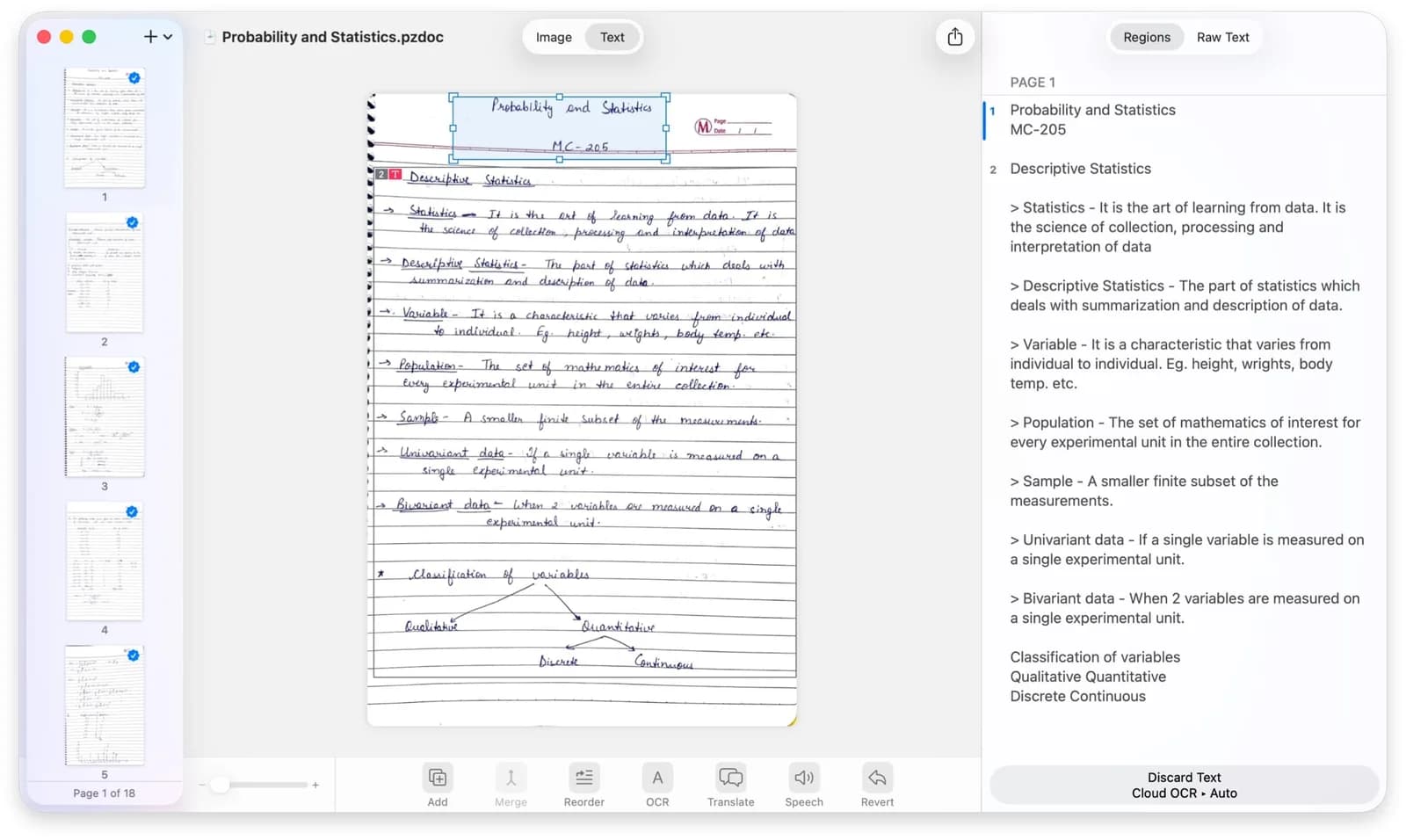
How it works in practice: you press a hotkey, drag a selection box over a handwritten image on screen (a photo in Preview, an iPhone scan you just airdropped, a PDF opened in your browser), and ZenOCR extracts the text. For scanned pages, you can drag the image or PDF directly onto the app and get clean Markdown output.
The honest performance picture: for my own fairly messy print (not cursive, but definitely not clean), AI mode got most of it. Not every word; unusual letter formations still trip it up. In practice it handles genuinely messy handwriting better than the built-in options. Your experience will vary based on your handwriting style. Neat-to-moderate print: quite reliable. Fast flowing cursive: still better than Live Text, but manage your expectations.
The requirements: AI mode needs Apple Silicon (M1 or later). Intel Macs are not supported for this feature. Fast mode works on Intel but doesn't do handwriting. If you're on an older Intel Mac, this option won't apply.
Price: $12.99 one-time, 7-day free trial, Mac App Store.
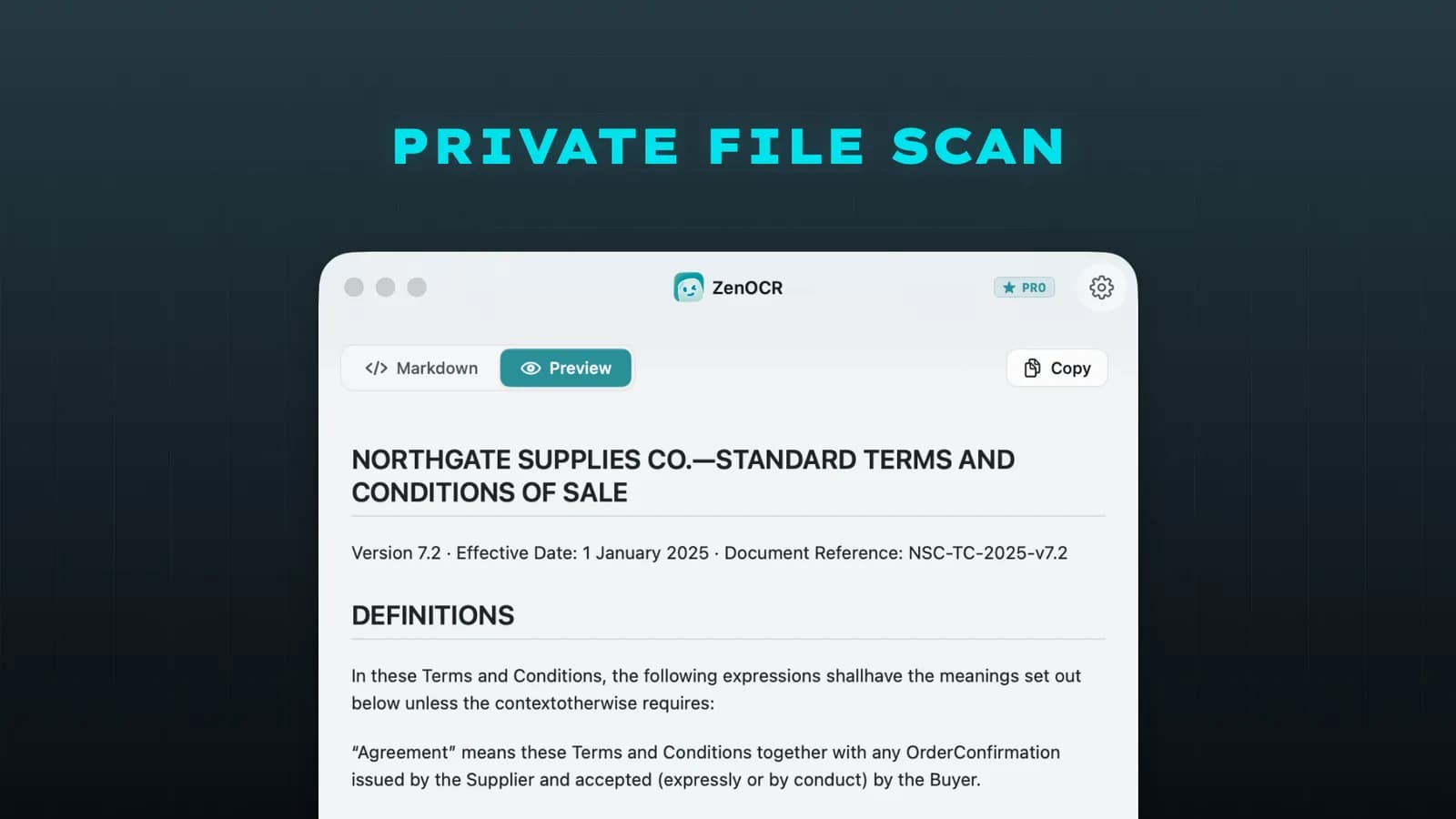
The privacy story is concrete: it’s a natural fit for confidential documents, since nothing ever leaves your Mac. That’s the actual reason the local approach exists, not just as a feature checkbox, but as the way the whole architecture is built.
Tips for Better Handwriting OCR Results
Whatever tool you use, image quality matters more than you might expect. A few things that genuinely help:
Use dark ink on a light background. Black or dark blue ink on white paper gives the highest contrast. Light pencil on cream-colored notebook paper is one of the harder cases.
Photograph in good, even light. Shadows across the page are a common culprit. Natural daylight from a window (not direct sun) works well. Avoid photographing at an angle and shoot straight down.
Flatten the page. Curved pages from thick notebooks cause distortion that throws off recognition. Hold the page flat or press it against a hard surface.
Write with spacing between words. If you're capturing something you're writing now (not archiving old material), leave clear gaps between words. Cramped handwriting where words nearly touch is much harder to parse.
Scan at higher resolution if you can. If you have access to a document scanner, use it over a phone camera. iPhone scanner (via Files or Notes) is second-best; a casual handheld photo is last resort.
Keep sentences short if writing for later OCR. If you're keeping a journal with the intent to digitize it later, shorter lines with more line spacing produce consistently better results.
Frequently Asked Questions
Can OCR read cursive handwriting on a Mac?
Some tools can, with caveats. macOS Live Text handles cursive poorly, documented to misread common letters like "y" as "v." Tools with dedicated handwriting models (like ZenOCR's AI mode using GLM-OCR) do better, but even the best current technology will make errors on very fast or idiosyncratic cursive. Neat connected writing is much more reliable than rapid stream-of-consciousness script.
Is handwriting to text conversion private on Mac?
It depends entirely on the tool. macOS Live Text is fully local. ZenOCR is fully local, with models running on-device and nothing uploaded. Cloud-based OCR tools like Prizmo's best handwriting features send your image to Microsoft Azure's servers. If you're digitizing anything sensitive (journals, medical notes, private correspondence), a local tool is the right choice.
Does handwriting OCR work offline on Mac?
With the right tool, yes. ZenOCR works completely offline once you've downloaded its models on first launch. macOS Live Text is also offline. Cloud services (Prizmo's cloud features, web-based OCR tools) require an internet connection.
What's the best free option for handwriting to text on Mac?
macOS Live Text is the only genuinely free option built into the system. It works acceptably for neat block printing in good lighting. For actual handwriting, especially cursive, the free options are limited. ZenOCR offers a 7-day free trial, which is enough time to run your real material through it and see how it handles your specific handwriting style.
Does ZenOCR work on Intel Macs?
ZenOCR's AI mode, which handles handwriting, requires Apple Silicon (M1 or later). The app itself requires macOS 13 Ventura or later. If you're on an Intel Mac, AI mode is not available.
How do I convert a handwritten photo to text on Mac?
The quickest path: drag the photo onto ZenOCR and let AI mode process it. (For non-handwritten images, see our broader guide on how to extract text from an image on Mac.) The output appears as editable text or Markdown. Alternatively, open the image in Photos and try right-clicking to invoke Live Text, which works for very clean printing. For anything handwritten in a journal or on loose paper, ZenOCR's AI mode is the more reliable route.