
Most PDF converters give you messy plain text or a bloated Word file. Here's what actually works for clean Markdown output, and which tools you can trust with private documents.
TL;DR: If you need to convert a PDF to structured Markdown on a Mac and keep the file on your machine, ZenOCR is the offline tool I know of that runs a local AI model and aims to preserve tables, headings, and equations in the output. Online converters are a reasonable shortcut for non-sensitive, simply structured PDFs. For confidential documents, academic papers, or anything going into a local LLM pipeline, ZenOCR is the option I would pick.
Why Convert PDF to Markdown?
If you’re building a knowledge base in Obsidian, Logseq, or Notion, raw PDFs are a dead end. You can’t link to sections, search across them properly, or pipe them into a text editor. Converting a PDF to Markdown gives you structured text with headings, tables, and (if your source has them) properly formatted equations. You can drop it into a vault, commit it to git, and diff it like any other file.
The other big use case is feeding documents into LLMs or RAG pipelines. LLMs want clean plain text, not a blob of PDF binary. Markdown with preserved structure (headings, lists, tables) is significantly better input than a single wall of extracted text. This matters more than most people realize: a well-structured Markdown file from a technical paper often retrieves more relevant chunks than the same content dumped as raw text.
Converting piles of old PDFs into clean Markdown to build out a personal knowledge base is one of the strongest use cases for this workflow. The conversion quality makes the difference between a pile of files and something actually usable.
So the goal is clear: get Markdown out of a PDF, with tables intact, headings where they belong, and equations as LaTeX if possible. Let’s go through the real options on a Mac.
Method 1: Online PDF-to-Markdown Converters
Search “pdf to markdown converter” and you’ll get a page full of web tools. Some of them work reasonably well for simple documents. The workflow is: upload PDF, wait, download Markdown file. Fast, zero setup.
The problem is the upload part.
When you drag a PDF into a browser-based converter, that file goes to someone else’s server. For a PDF of public blog posts, that’s probably fine. For anything else (a contract, a research paper you haven’t published yet, client notes, a medical record, internal company documentation), you’ve just handed an unknown third party your document. The privacy policy of most of these tools is either vague or openly says they may use uploaded content to train or improve their services.
This isn’t hypothetical paranoia. If you’re feeding PDFs into an LLM pipeline, those documents often contain exactly the kind of material you’d least want uploaded: proprietary research, customer data, drafts under NDA. The “fast” solution becomes a quiet liability.
Even if the service is trustworthy, you’re at the mercy of their server being up, their file-size limits, and their rate limits. A 40-page technical PDF is not always going to process cleanly.
Honest verdict: Fine for non-sensitive, simple PDFs when you need a quick draft. Not appropriate for anything private, proprietary, or large.
Method 2: CLI and Open-Source Tools
There are several command-line tools that can extract text from PDFs locally: pdftotext, poppler, pymupdf, and a few Python libraries built on top of them. For developers comfortable in a terminal, these are worth knowing.
The upside: fully local, no upload, scriptable, and free. If you have 500 PDFs and want to batch-process them, a shell script using pdftotext is probably still the fastest path.
The downside is everything else:
- Setup friction. You need Homebrew, Python, or a specific library installed and working. For non-developers, this is a hard stop.
- Table handling is poor to nonexistent. Most of these tools output a flat stream of text; they don’t understand that a grid of numbers is a table. You get columns jumbled together or line-by-line output with no structure.
- Math equations come out as garbled Unicode or are simply dropped. If you’re working with academic papers or technical documentation, this is a serious problem.
- Scanned PDFs are largely unsupported without additional OCR tooling layered on top. A scanned-image PDF from a book or old document is not the same as a native PDF.
Honest verdict: Best for native (non-scanned) PDFs with simple text layouts where you have developer skills and need batch processing. Breaks down quickly on complex documents.
Method 3: ZenOCR: Local AI, One-Click Markdown Output
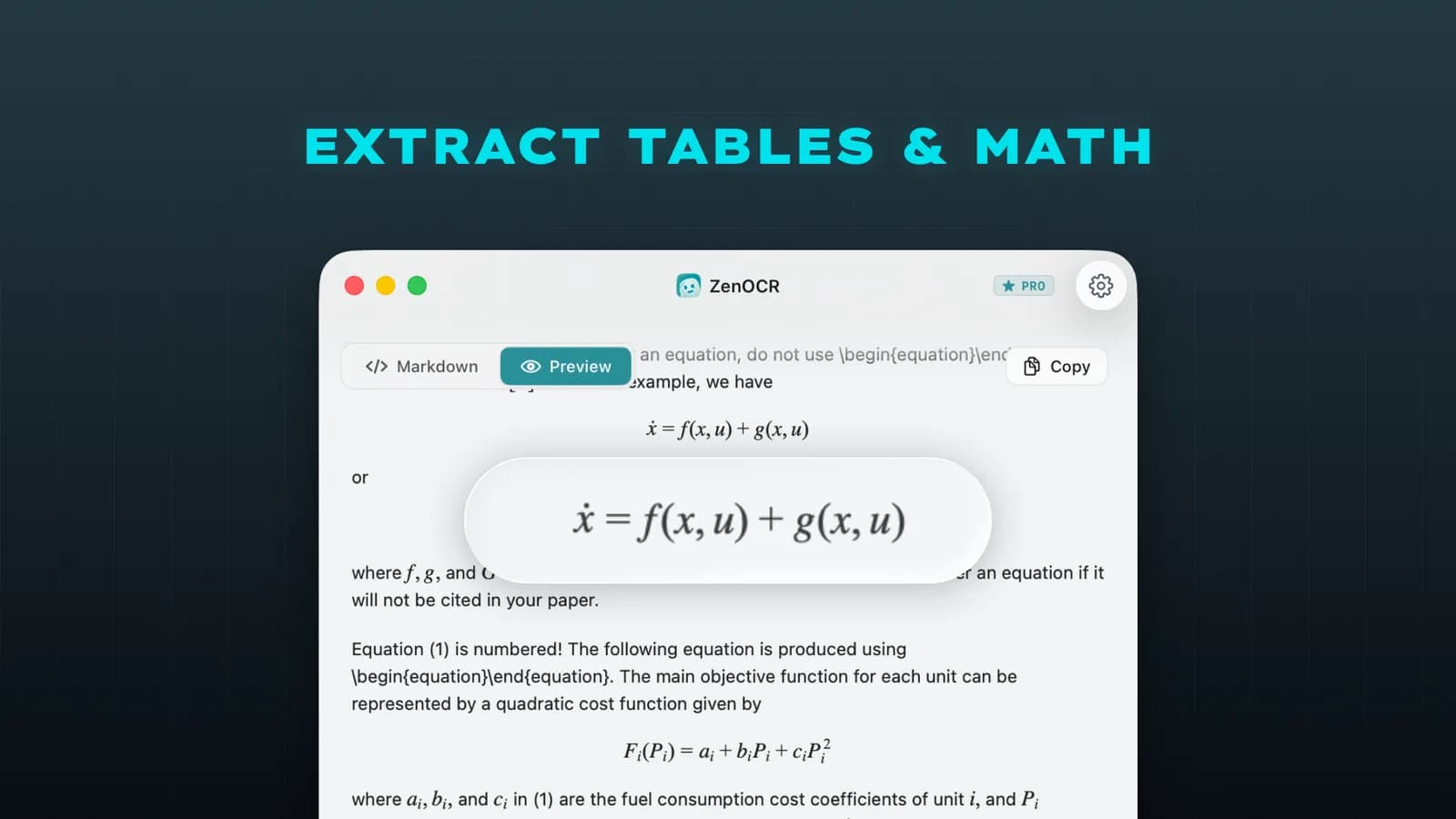
This is where the gap between “I need clean Markdown from a complex PDF” and “here are my options” narrows to one tool: ZenOCR, an OCR app for Mac that runs entirely on your machine.
The workflow is about as simple as it gets: drag a PDF (or an image file) directly onto the ZenOCR window, then click Start Scan. Recognition streams in live as the model processes the document, so you can watch the text appear in real time. When it finishes, you can Copy the result, Download it to save as a file, or Cancel and re-scan. No browser, no upload, no API call to a remote server. The output is Markdown: headings, tables, and equations included.
Under the hood, ZenOCR’s AI mode runs two local models: GLM-OCR (a 0.9B-parameter model from Zhipu AI, MIT licensed) and DeepSeek-OCR2. Both run entirely on your Mac via the Apple Neural Engine. GLM-OCR scored 94.62 on OmniDocBench V1.5, one of the top results at the time of writing. The DeepSeek-OCR research paper (arXiv 2510.18234) states the model handles “nearly 100 languages” in PDF documents, so this isn’t just English.
For students or researchers working with technical papers, this matters. In my testing a batch of math equations and tables on an M2 MacBook came out surprisingly well. That’s the kind of document (dense equations, multi-column layout, mixed text and tables) where online converters either fail or require you to upload something you’d rather keep private.
What it actually outputs: clean Markdown with tables formatted as Markdown tables, headings as #/##/###, and equations as LaTeX. Structure survives in a way it simply doesn’t with text-extraction tools.
Honest limitations to know before buying:
- Apple Silicon only for AI mode. The GLM-OCR and DeepSeek-OCR2 models use the Neural Engine, which means M-series Macs only. Intel Macs are not supported. Fast mode (Apple Vision, good for plain printed text) works on both, but you won’t get Markdown output from Fast mode.
- Code blocks are not fenced. If your PDF has code samples, they’ll appear as indented text or plain paragraphs, not triple-backtick code blocks. Worth knowing if your source material is technical documentation with lots of code.
- No batch processing yet. You process one file at a time. The developer has mentioned on Reddit that batch processing and a Watch Folder mode are on the roadmap, but they’re not in the current release.
- Scanned PDFs need AI mode. A PDF that is really a scan of a physical document (image-only, no embedded text) requires the AI mode to read at all. Native PDFs work with either mode.
Privacy: the models download once on first launch and never touch the network again. ZenOCR has no account system, no telemetry you can observe, and works fine with Wi-Fi turned off. It’s a natural fit for confidential documents, since nothing ever leaves your Mac. That’s the point.
Price: One-time purchase on the Mac App Store (see zenocr.com for the current price). Seven-day free trial. No subscription.
System requirement: macOS 13 Ventura or later; AI mode requires Apple Silicon.
Method 4: Traditional Desktop OCR Software (ABBYY, Prizmo)
For completeness, ABBYY FineReader for Mac and Prizmo both do OCR and document conversion.
ABBYY FineReader outputs DOCX and XLSX, not Markdown. Getting Markdown out of a Word file is its own problem. It supports 192 languages, which is a real advantage if you’re working in an uncommon language. But the Mac version is notably more limited than the Windows version, and at $69/year on subscription, it’s hard to justify for this specific use case.
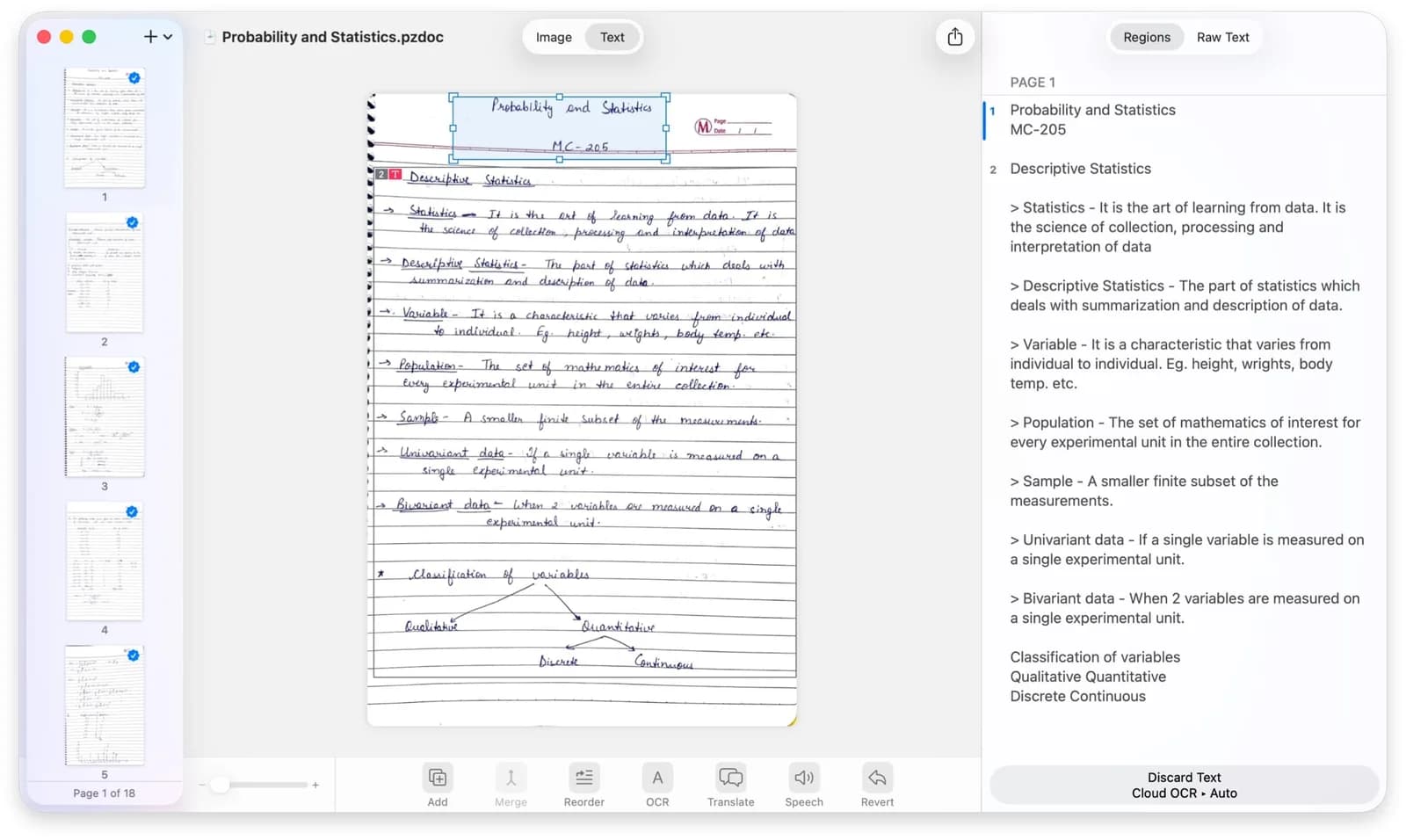
Prizmo does handwriting recognition, but its best OCR quality runs on Microsoft Azure, meaning your document goes to the cloud. That’s the opposite of what we’re trying to do here. It also outputs to DOCX, not Markdown.
Honest verdict: Useful for high-volume enterprise document workflows targeting Word/Office formats. Not the right tool for a PDF-to-Markdown pipeline.
Method 5: macOS Built-in Tools
Live Text (built into macOS 12+) can read text from images in Preview, and Apple says Preview can also recognize text in an image-based PDF (File > Export, then Embed Text). It’s fast, free, and always available. It does not output Markdown, cannot handle tables with any structure, and struggles with handwriting (reportedly reads “y” as “v” in some cases).
For copying a single line of text off a PDF you have open, Live Text is exactly right. For structured Markdown output, it doesn’t apply.
Tips for Better Markdown Conversion
Getting Tables Right
Tables are where most converters fall apart. If you’re using ZenOCR’s AI mode on a complex table, the output is Markdown table syntax (| col1 | col2 |). If the source table has merged cells or irregular column spans, expect some manual cleanup, because no automated tool handles those cleanly. For simple grids, the output is usually paste-ready.
Equations and LaTeX
GLM-OCR is specifically trained to output math as LaTeX, which means an equation like E=mc² comes out as $E = mc^2$ rather than as garbage Unicode or a blank space. For technical papers and textbooks, this is significant. If you’re using these files in Obsidian with a LaTeX plugin (like Obsidian’s built-in equation renderer), the Markdown will render correctly.
Scanned vs. Native PDFs
A native PDF (created from Word, InDesign, LaTeX, etc.) has embedded text. You can copy-paste from it in Preview, and CLI tools can extract that text. A scanned PDF is an image of paper: there is no embedded text, just pixels. ZenOCR’s AI mode handles both, but scanned pages take longer and accuracy depends on scan quality. High-resolution scans (300 DPI+) convert much better than low-resolution or skewed scans.
Getting Clean Markdown into Obsidian
Once you have a Markdown file, drop it into your Obsidian vault folder in Finder. Obsidian picks it up immediately. If you ran the conversion with ZenOCR, the headings and links are already in Markdown syntax, so no extra cleanup step is required for most documents.
Closing Thought
The gap in this category is real: no other offline tool on Mac converts PDFs to structured Markdown. Online tools do it but ask you to upload. CLI tools can run locally but lose structure. ZenOCR closes that gap for Apple Silicon Macs, with the honest caveat that code blocks aren’t fenced and batch processing isn’t there yet.
If you’re building a private knowledge base, processing confidential research, or feeding documents into a local LLM pipeline, the offline constraint matters more than it might seem. Try the ZenOCR seven-day trial on a document you actually care about. That’s the only real test.
FAQ
Can I convert a PDF to Markdown for Obsidian on Mac without uploading it anywhere?
Yes. ZenOCR processes everything locally: drag the PDF onto the ZenOCR window, click Start Scan, and get Markdown output shown right in the app. No upload, no account, works offline.
What about image-to-Markdown conversion? Can ZenOCR handle that?
Yes. ZenOCR accepts image files (PNG, JPG, etc.) as well as PDFs. AI mode runs the same OCR pipeline and outputs Markdown, including tables and equations from image sources.
Is ZenOCR a good Markdown OCR tool for scanned documents?
For scanned PDFs and images, AI mode (GLM-OCR + DeepSeek-OCR2) handles the recognition and outputs Markdown. Scan quality matters: 300 DPI and above converts well. The models run locally, so there’s no upload step.
Does ZenOCR work offline? Is it really private?
Yes to both. The AI models download once on first launch and never connect to the network again after that. ZenOCR has no account system. It works with Wi-Fi completely off.
Does it only work on Apple Silicon Macs?
AI mode (the one that outputs Markdown) requires Apple Silicon (M1 or later). Fast mode, which is good for plain text extraction to clipboard, works on Intel Macs, but it uses Apple Vision and does not produce Markdown output.
What’s the best free way to convert PDF to Markdown on Mac?
For native (non-scanned) PDFs with simple layouts, pdftotext (via Homebrew) can extract text for free, and you can add Markdown headings manually. For anything complex (tables, equations, scanned pages), you’ll need OCR with structure understanding, and free options are thin. ZenOCR’s seven-day trial covers the evaluation period.