
Short answer: Bloom is a very good Finder replacement for people who want multiple panes, fast search and a polished interface, and it is the one I ended up using daily. It is not the right pick for everyone: ForkLift is stronger if you work with remote servers all day, and QSpace Pro is a one-time-purchase alternative that we do sell. Bloom is not available in our store right now. You can get it from the developer at bloomapp.club.
Below is my original review of Bloom (written in July 2025, still the core of this page), followed by a comparison with QSpace Pro and ForkLift and a short FAQ.
For years, I told myself that Finder was "good enough." It's the quintessential macOS experience, a bedrock of the operating system. But as my workflow grew more complex, that "good enough" started to feel like a compromise. My need for robust os x file management was growing, and the default Mac file manager was causing a slow, creeping inefficiency that I was just learning to live with.
My daily work involves managing large projects, coding, writing, and handling hundreds of files. The limitations of Finder were no longer minor annoyances; they were significant roadblocks, and I knew my quest for a better macOS file manager had to begin.
The Daily Grind: My Pain Points with the Default macOS File Manager
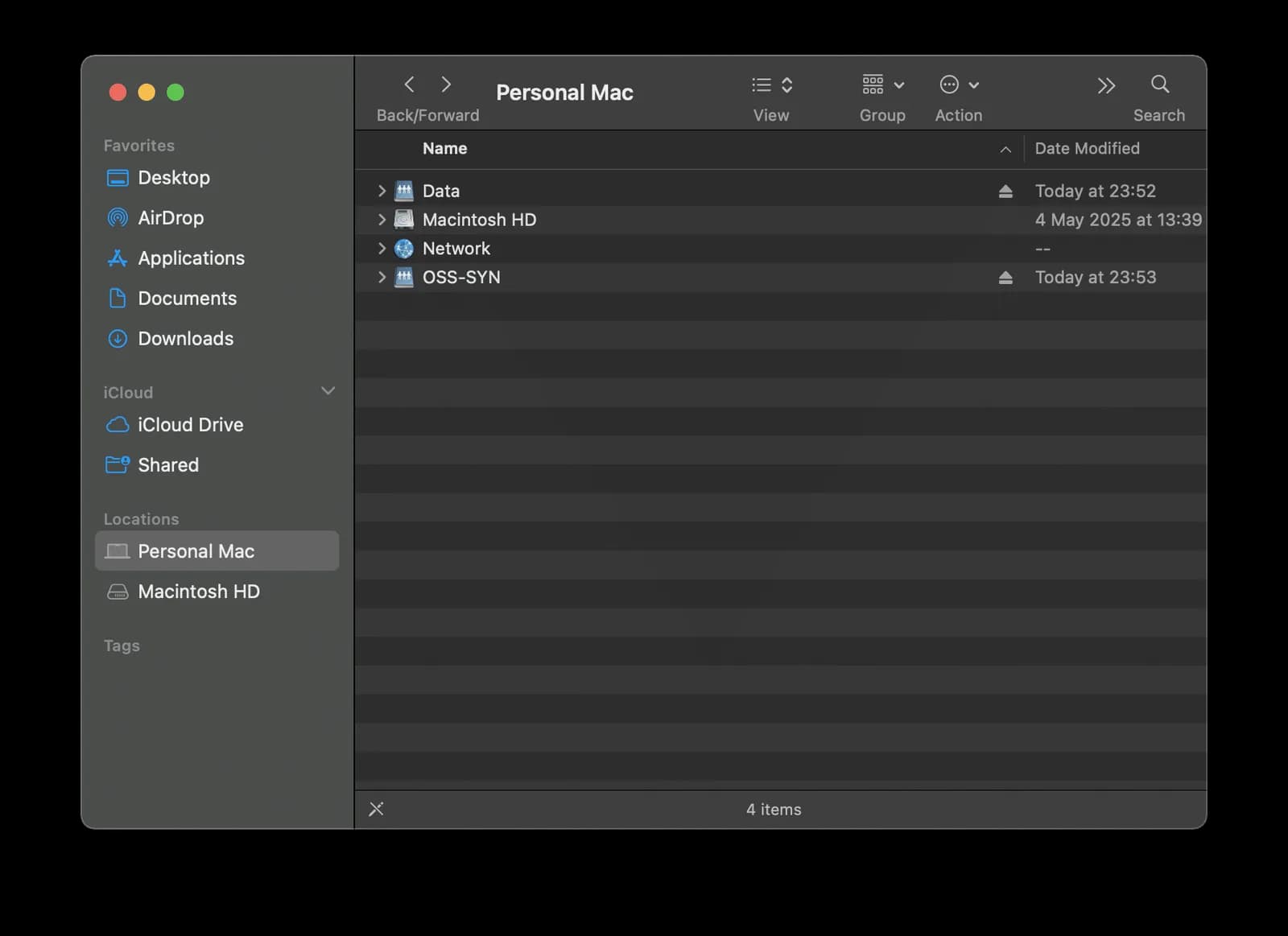
My frustration wasn't a single issue, but a death-by-a-thousand-cuts scenario. As a website manager, my days are a constant shuffle of files between my local machine, a NAS, and a web server. Finder's single-pane view made this a clumsy, drag-and-drop nightmare. Its unreliable search meant I wasted precious time hunting for files I knew existed. The column view was a source of constant friction; the endless need for manual column resize just to read filenames was infuriating. For anyone used to a more powerful tool, the limitations were stark. I knew there had to be a better file manager for Mac.
A Jungle of Alternatives and a Blooming Discovery
The world of third-party options for a macOS file manager is a jungle. My search started by looking for a free mac file manager, but I quickly learned that the most powerful tools often came with a price. I just needed one that was fair.
Just as I was about to resign myself to my fate with the default macbook file manager, I stumbled upon a Reddit thread about a new app: Bloom. It was being talked about as a serious Finder replacement. Bloom offers a 7-day free trial on its Gumroad sales page, so I started the trial, and within the first hour with the app I knew my search was nearly over. (For current pricing and license terms, see the official Bloom site; I do not quote numbers here because they can change.)
How the Bloom App Solved My File Management Pains
The Bloom app isn’t just another OSX file manager; it's a complete re-imagining of what file management on a Mac should be. It takes the core aesthetics of macOS and injects a level of power and productivity that I now can't live without. The features that people were raving about online were direct solutions to every single one of my pain points.
The Multi-Pane Layout: My Workflow, Built Around Panes
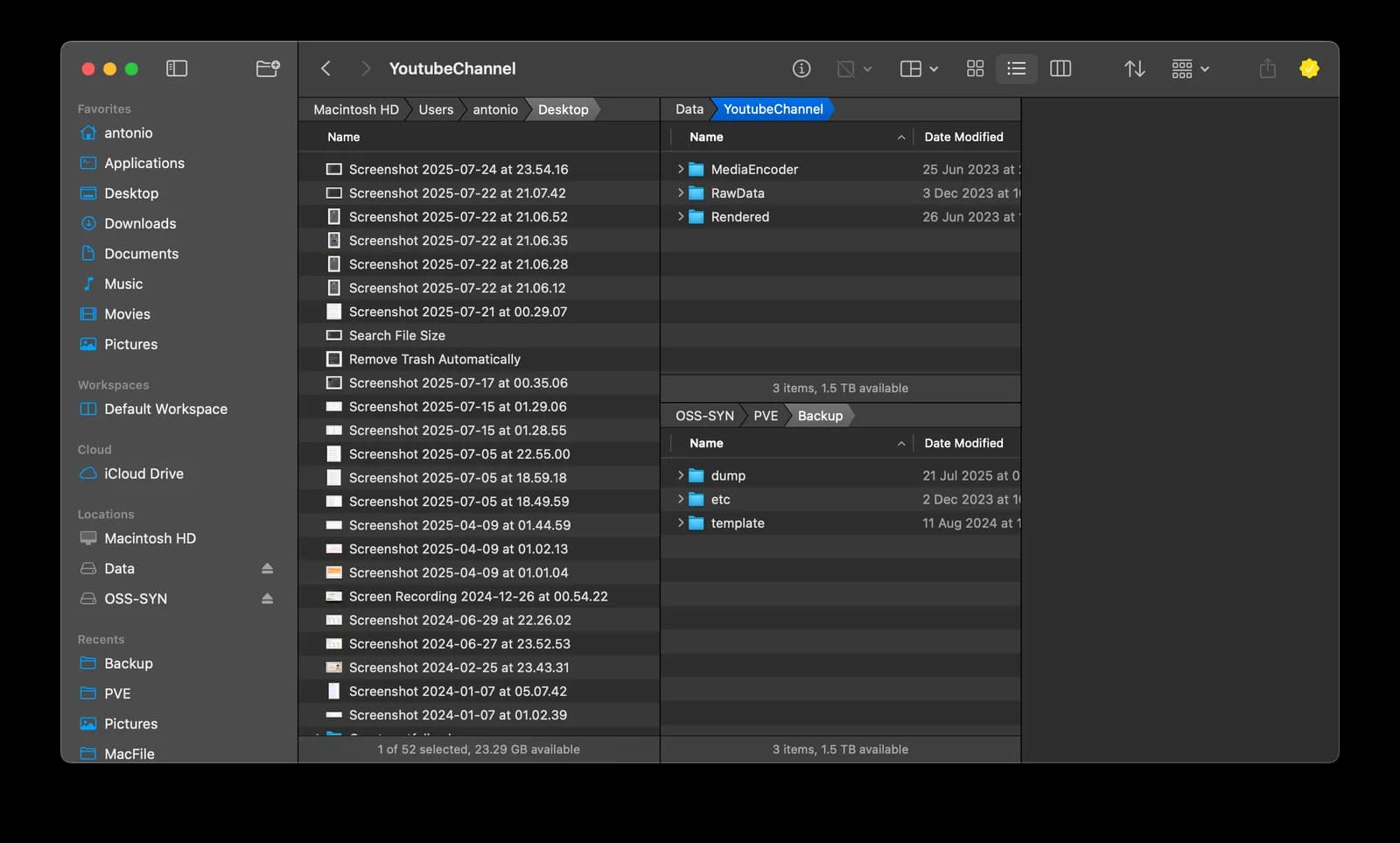
This was the feature I wanted most. With Bloom, I can effortlessly create a workspace with two, three, or even four panes. My typical setup now involves my local 'dev' folder in the first pane, my NAS backup directory in the second, and a connection to my web server in the third. I can move finished articles or assets from local to backup to production with simple keyboard shortcuts instead of clumsy drag-and-drop. This feature alone turns Bloom from a simple file browser for mac into a professional command center.
A Search That Actually Finds Things
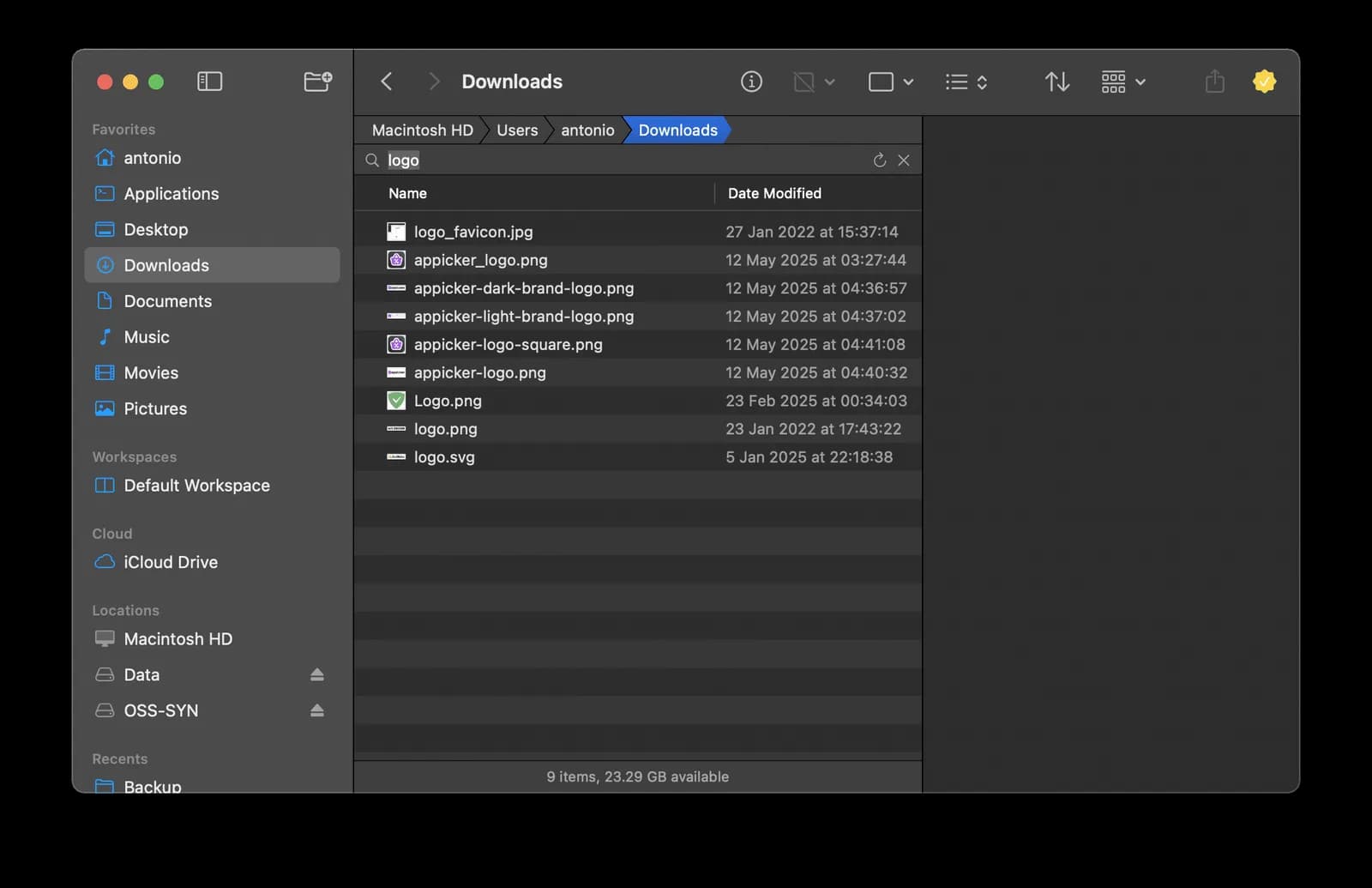
Bloom's approach to search is a revelation. It doesn't rely on the sometimes-fickle Spotlight index. It searches the actual files on your disk, and it is blazing fast. Just last week, I needed a specific .htaccess configuration. I typed a unique snippet into Bloom's global search, and within seconds, it located the file on my NAS. The in-panel search (⌘F) is just as powerful. When I'm in a project folder with hundreds of assets, I can just type logo and instantly see all the relevant files. This is the kind of reliability I expect from a modern OSX file browser.
A True Productivity Arsenal
Beyond fixing my main issues, Bloom delighted me with an arsenal of thoughtful features. It proved to be more than just a file browser mac os x; it was a full suite of file management software for mac os x.
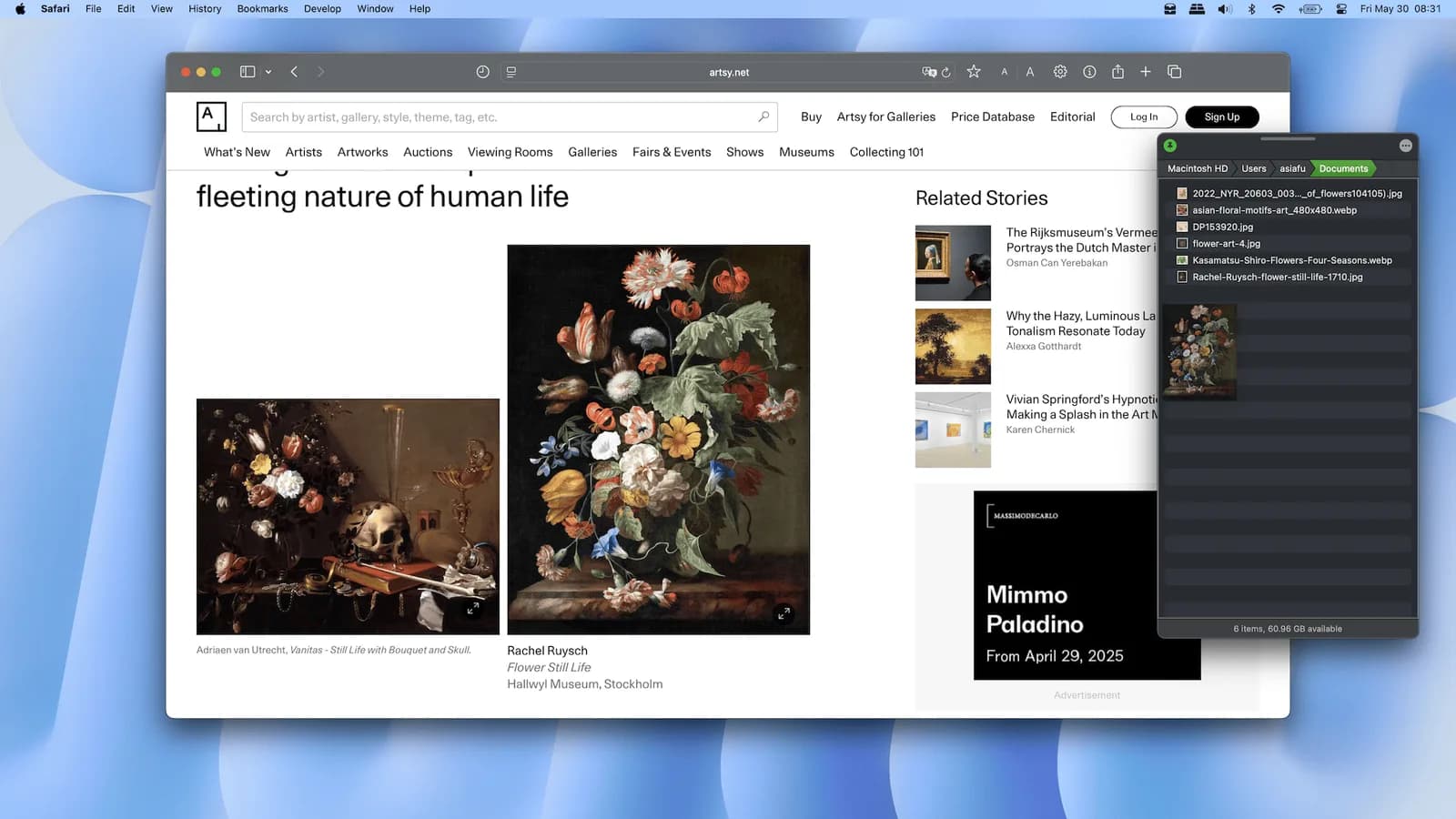
Portal: This is one of my favorite ideas in the app. It’s a compact, floating Bloom window. When I'm gathering images for a new blog post, I open a Portal window and pin it on top. Then I can browse through various asset folders and drag all my chosen images into the Portal. It becomes my temporary staging area before I batch-process and upload them.
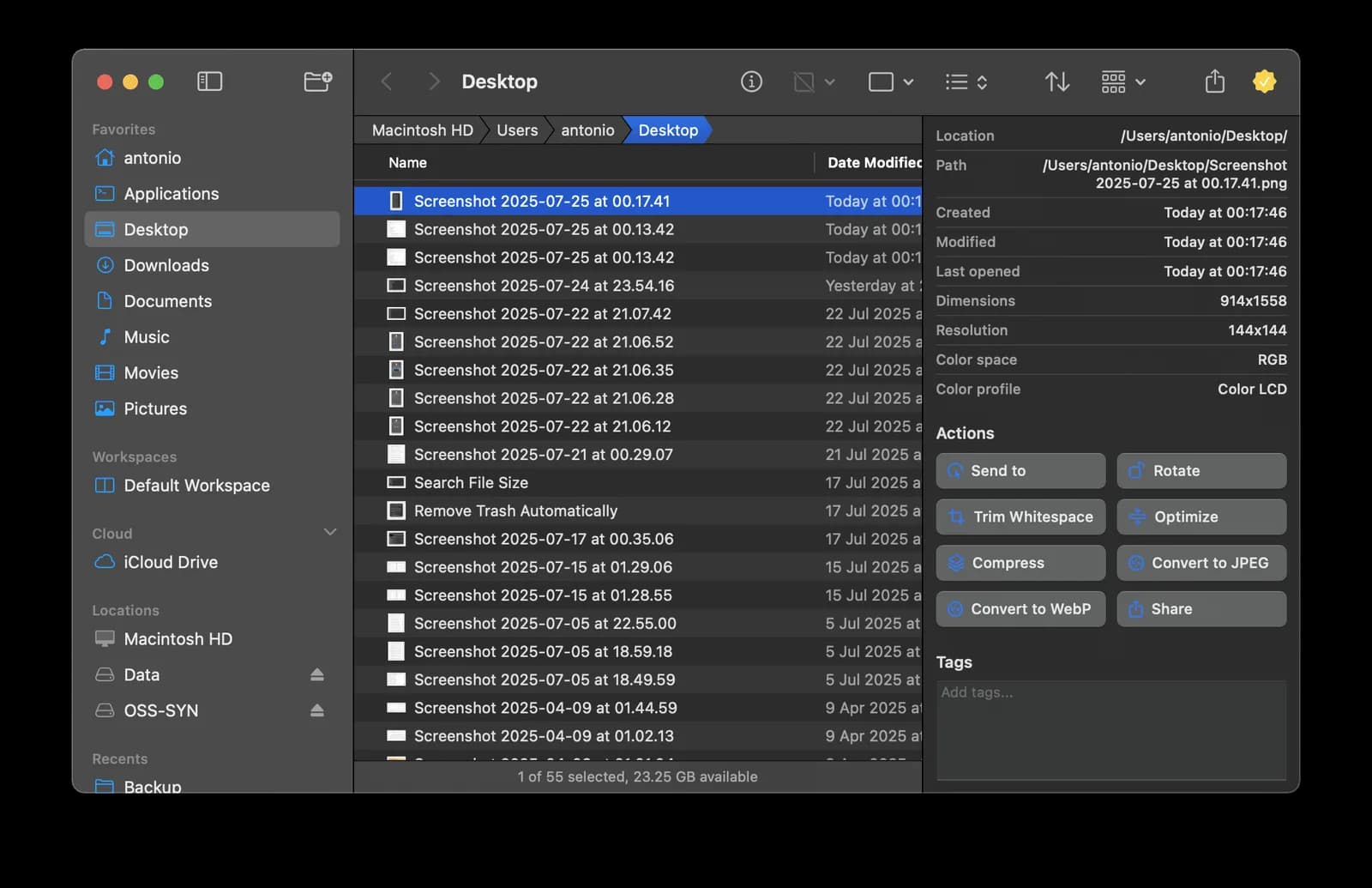
Built-in File Conversion: Useful for web work. I frequently need to convert images to the lightweight WebP format. With Bloom, I can select a group of PNGs or JPEGs, right-click, and convert them to WebP instantly. It's an entire step of my workflow that I no longer need separate file organizer software mac for.
Intelligent Column Resizing: That constant, frustrating manual column resize in Finder? Gone. Bloom’s column auto-resize feature is a perfect example of its thoughtful design. It intelligently adjusts the column width in both list and column views to fit the longest filename in the current directory. It’s a small detail that removes a massive daily annoyance.
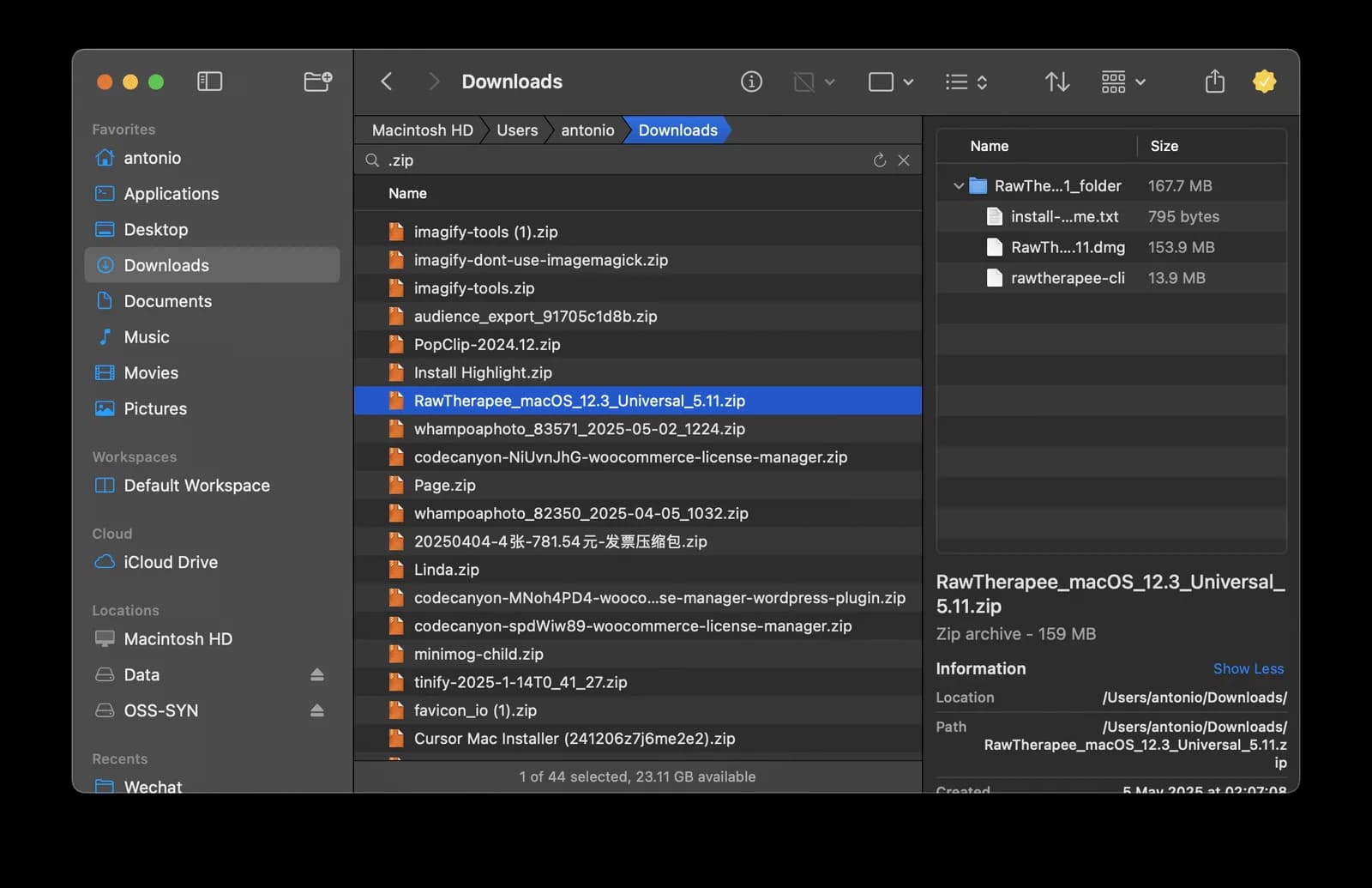
View Archives Without Extracting: Every week, I download a full backup of my server as a .zip file. In the past, if I needed to check a single log file, I'd have to extract the entire multi-gigabyte archive. With Bloom, I just select the archive and its entire file structure appears in the inspector. I can browse it like a normal folder and even use Quick Look on the files inside.
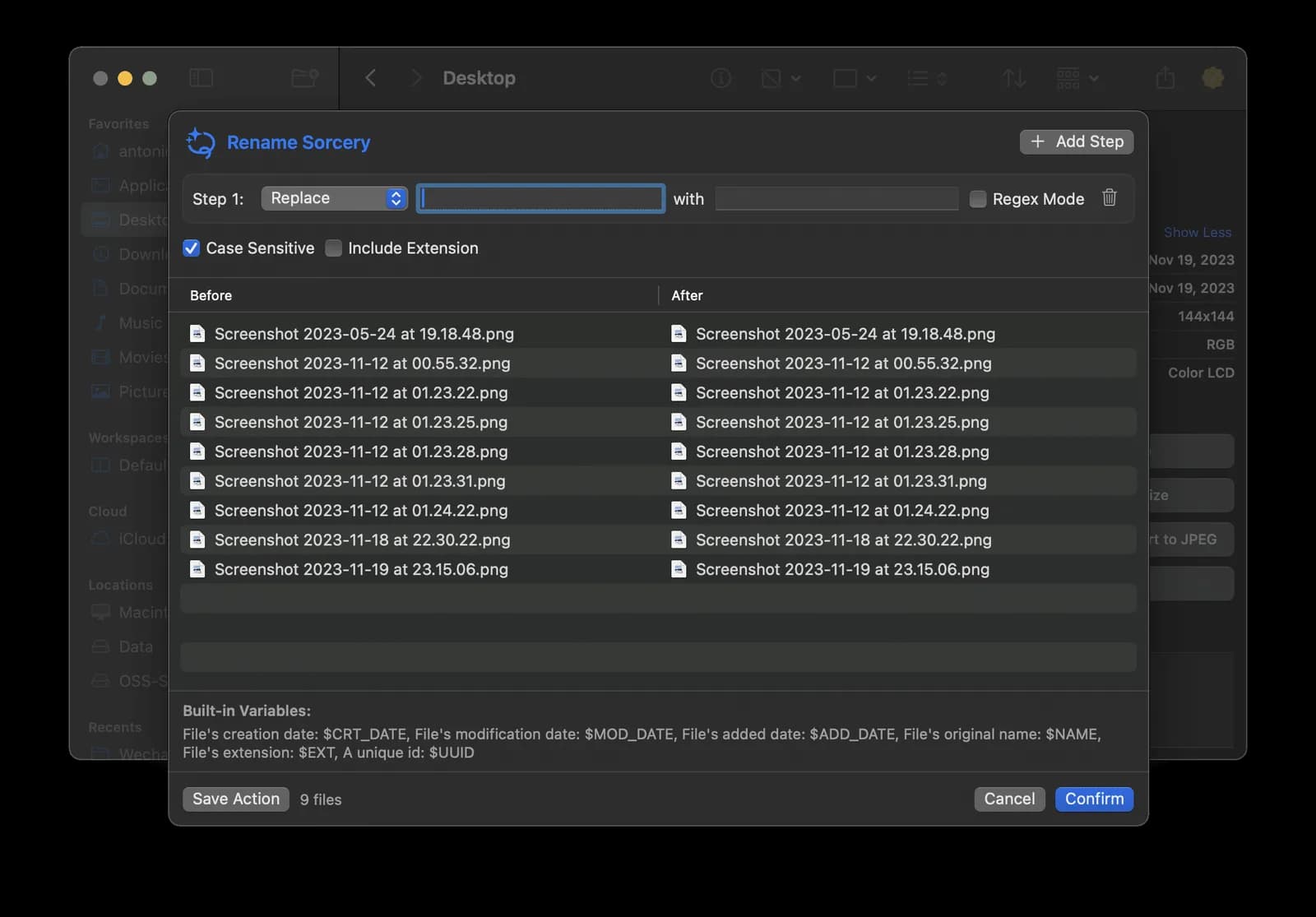
Advanced Rename: As a true mac file organizer, Bloom’s batch renaming tool is very capable. My camera uploads photos with names like IMG_4081.JPG. For SEO, I need them to be my-awesome-blog-post-title-01.jpg. I can create a multi-step workflow to replace the default name, add a sequential number, and convert the filename to lowercase, all in one go.
And Yes, It Looks Good Too
While productivity is key, aesthetics matter. A great Bloom osx or Bloom macos app should feel like it belongs. Bloom understands this. I was tired of Finder's monochrome existence, and was delighted to find that Bloom lets you pick your favorite color and styles the entire interface to match. It finally feels like "my" file manager.
A Developer Who Listens
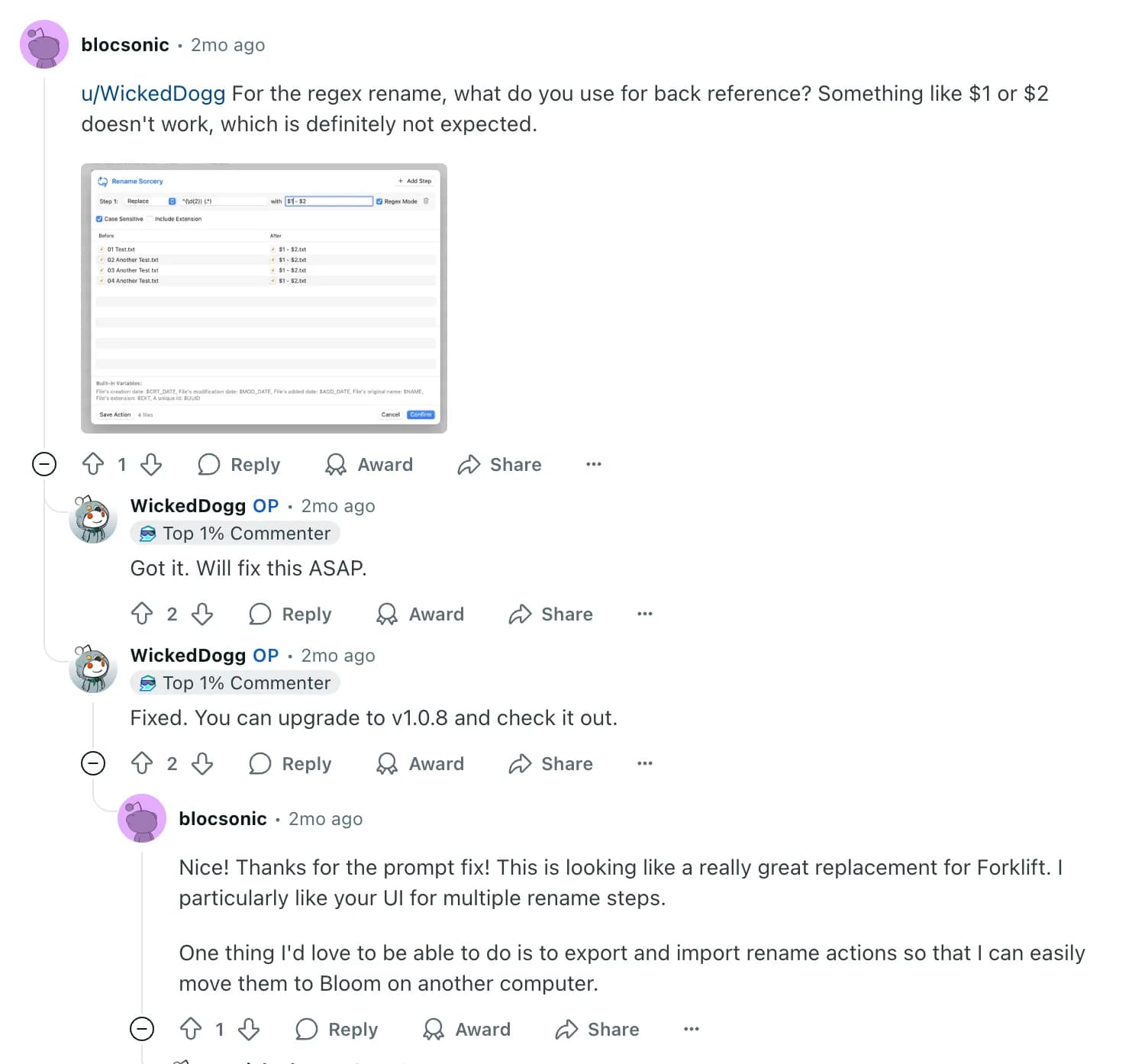
If I had to pick what sets Bloom apart beyond its features, it would be the developer's responsiveness. Reading through the community discussions was astounding. A user would report a crash, and within hours, the developer would reply with a fix. A user would request a feature, and it would appear in an update a day or two later.
This level of responsiveness is what separates a good app from one you can trust. That is a good sign for an app you plan to rely on every day. (These are discussions from mid-2025; check the developer's current changelog for how active it is today.)
What Bloom Does Better Than Finder, and Where It Falls Short
Compared with Finder, Bloom gives you multi-pane workspaces, search that reads the disk directly, a floating staging window, archive browsing and a stronger batch rename, in an interface that still looks like macOS. For license terms and pricing, check the official site.
The trade-offs are real. When I wrote this review, Bloom handled mounted servers well but had no built-in SFTP or FTP connection manager, and search had no advanced filters such as file size or date range. It is also a younger app than ForkLift, so if you need a long track record, weigh that. Check the developer's site to see whether these gaps have been closed since.
Bloom vs QSpace Pro vs ForkLift
All three replace or extend Finder, but they aim at different people. Bloom is the most polished of the three in my experience. ForkLift is the one built around remote servers. QSpace Pro is the alternative we currently sell.
| Bloom | QSpace Pro | ForkLift | |
|---|---|---|---|
| Best for | People who want a refined, Finder-like app with multi-pane workspaces and fast search | People who want a one-time-purchase Finder alternative | Web developers and admins who move files to and from servers |
| Multi-pane / dual-pane | Yes, two to four panes in my testing | See the official site for the layout options | Dual-pane is its core design |
| Remote servers (SFTP, S3 and similar) | Mounted servers work; no built-in SFTP/FTP manager when I wrote this | See the official site | Strong: SFTP, FTP, WebDAV, S3, Backblaze B2, Google Drive, OneDrive, Dropbox, SMB and more, per the developer |
| Purchase model | See the official site for current pricing; 7-day free trial | One-time purchase of the Pro version | See the official site for current pricing |
| Devices | See the official site | Up to 2 devices | See the official site |
| System requirements | See the official site | macOS 10.15 or later, Intel and Apple silicon | Recent versions need a recent macOS; check the official site |
| In our store | Not available right now | Yes | No |
Where Bloom is better
Bloom is the most polished of the three. If you care about how the interface feels day to day, the color theming, the Portal window and the column auto-resize are the details that tend to decide it. If you want my honest ranking on looks and fit with macOS, Bloom comes first.
Where ForkLift is better
If you live in remote connections, ForkLift is the safer choice. It is built as a dual-pane file manager with a wide list of supported protocols and cloud services, and it has been around much longer than Bloom. If most of your work is moving files to servers and buckets, start there.
Where QSpace Pro makes sense
QSpace Pro is the option we sell, so take this section with that in mind. It is the Pro version from the official QSpace site, bought once, usable on up to 2 devices, and it runs on macOS 10.15 or later on both Intel and Apple silicon Macs. That broad system support is a practical reason to consider it if you are on an older Mac that newer apps no longer support. I have not reviewed QSpace Pro in depth here, so read the developer's feature list before you buy, and compare it with Bloom's free trial if you are undecided.

FAQ
Is Bloom the best Finder replacement for Mac?
For me it was, for the reasons above, but "best" depends on your work. Choose Bloom for polish and multi-pane workflows, ForkLift for heavy remote-server use, and QSpace Pro if you want a one-time purchase that supports older macOS versions.
Can I buy Bloom from Appicker?
Not right now. Bloom is not available in our store and we do not plan to restock it. Buy it from the developer at bloomapp.club.
Bloom vs ForkLift: which should I pick?
Pick ForkLift if you connect to servers and cloud storage all day. Pick Bloom if you mostly work with local files and want a lighter, more Finder-like app.
Bloom vs QSpace: what is the difference?
Bloom is newer and more polished in my experience. QSpace Pro is a one-time-purchase alternative available in our store, with support back to macOS 10.15 and for up to 2 devices. Try the trials where they exist and see which workflow fits.
Is there a free trial for Bloom?
Bloom's Gumroad sales page shows a 7-day free trial. Check the official site for the latest terms.