To free up space on a Mac, open System Settings > General > Storage to see what is using it, then work from the safest wins to the riskier ones: empty the Trash, delete large files and unused apps, turn on Apple's storage recommendations, and clear caches carefully. Clearing a cache frees some space and can fix a misbehaving app, but it is rarely the biggest win, and macOS already clears safe caches on its own when it needs room.
This guide covers both questions in one place: how to free up disk space, and how to clear cache on a Mac without breaking anything.
How do I check what is using my Mac's storage?
- Click the Apple menu and choose System Settings.
- Click General in the sidebar, then click Storage.
Per Apple's storage guide, this is the path on macOS Ventura 13 and later, including Tahoe and macOS 27. On earlier versions, choose Apple menu > About This Mac, then click Storage.
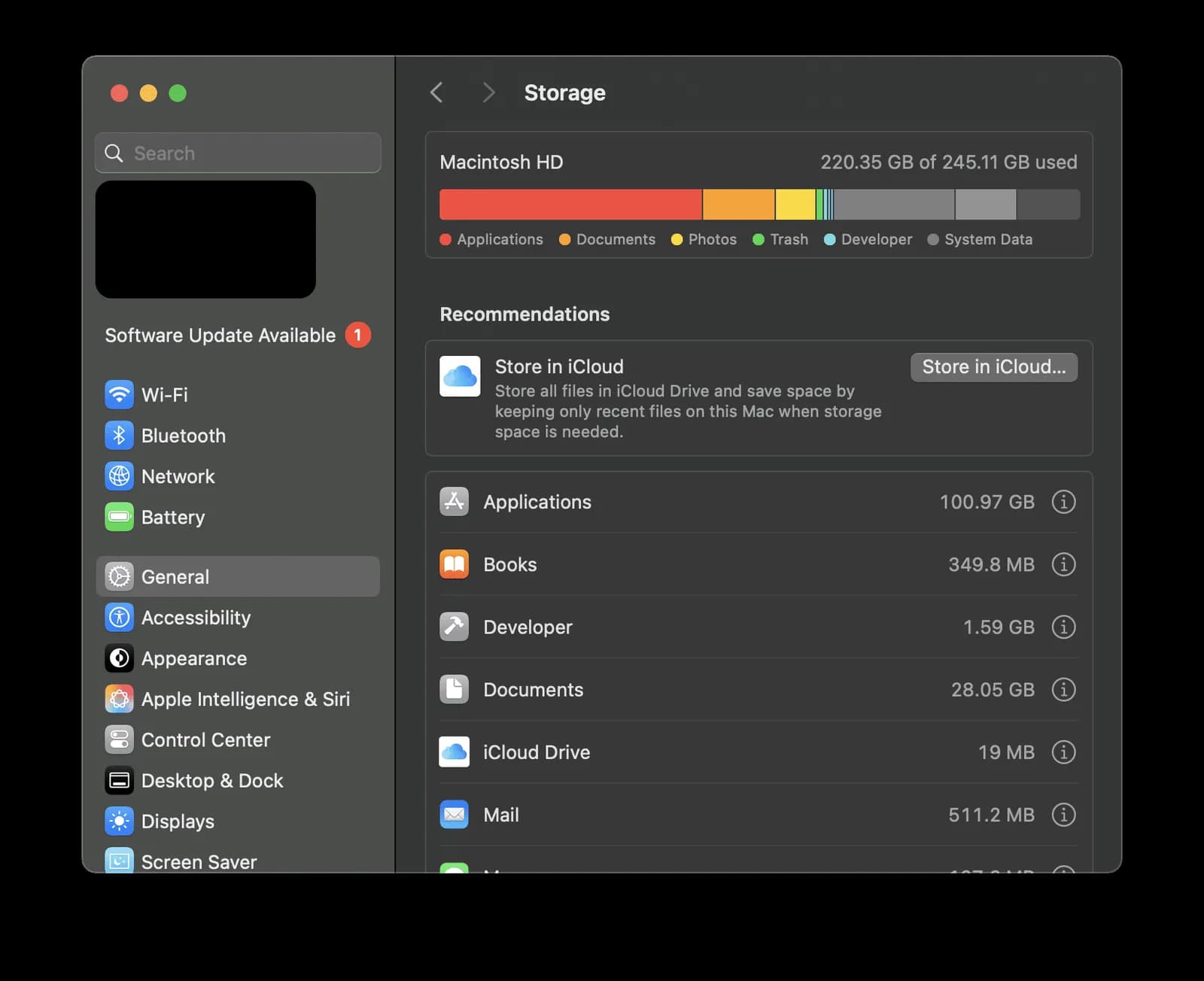
You will see a bar showing how your disk is divided, and a list of categories such as Applications, Documents, Messages, Trash and System Data. Categories that have a More Info (i) button let you see and delete what is inside them.
What is "System Data" and can I delete it?
"System Data" (called "Other" on older systems) is the part of your storage that does not fit a more specific category. Apple describes it as Apple and third-party files that do not belong to a named category. It includes things like caches, logs and other support files.
You cannot delete the category as a whole, and you should not try. Deleting random system folders can break macOS. A big System Data number usually shrinks on its own when macOS needs room, and Apple says macOS clears caches and logs that are safe to delete when it needs space. If the number is still large and your disk is nearly full, free space with the steps below instead.
What are the safest ways to free up space on a Mac?
Start here. These steps are reversible or low risk.
- Empty the Trash. Files in the Trash still take up space until you empty it.
- Delete files in Downloads. Old installers, disk images and PDFs pile up there.
- Delete media you can re-download or stream, such as music, movies and podcasts.
- Delete apps you no longer use. Open Applications in Storage, or use Finder.
- Delete old iPhone and iPad backups stored on the Mac.
- Move big libraries to an external drive, such as a Photos or iMovie library.
- Compress files you want to keep but rarely use. Right-click the item and choose Compress.
- In Mail, choose Mailbox > Erase Junk Mail and then Mailbox > Erase Deleted Items.
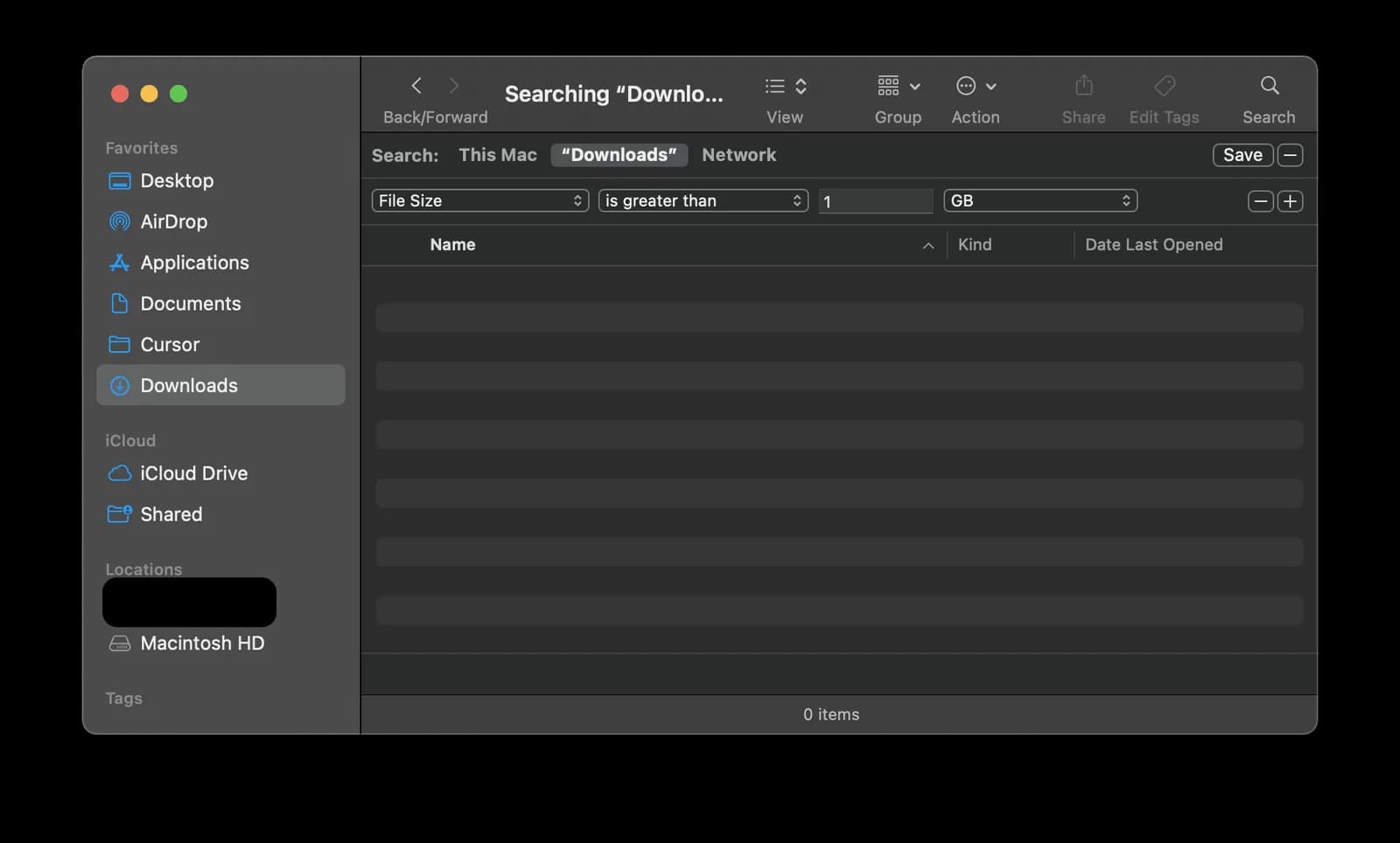
This list follows Apple's own guide to freeing storage space. To find the biggest files fast, press Command + F in a Finder window, set the first filter to File Size, choose is greater than, and type a number such as 1 GB.
What do the Storage recommendations do?
At the top of the Storage page, macOS suggests a few options. Apple describes them as follows, and which ones you see depends on your Mac and settings.
- Store in iCloud: moves files from Desktop and Documents to iCloud Drive, photos and videos to iCloud Photos, and messages and attachments to iCloud. When space is needed, only recently opened files stay on your Mac. Files in iCloud count against your iCloud storage plan.
- Optimize Storage: removes Apple TV movies and shows you have already watched, and keeps only recent email attachments on the Mac when space is needed.
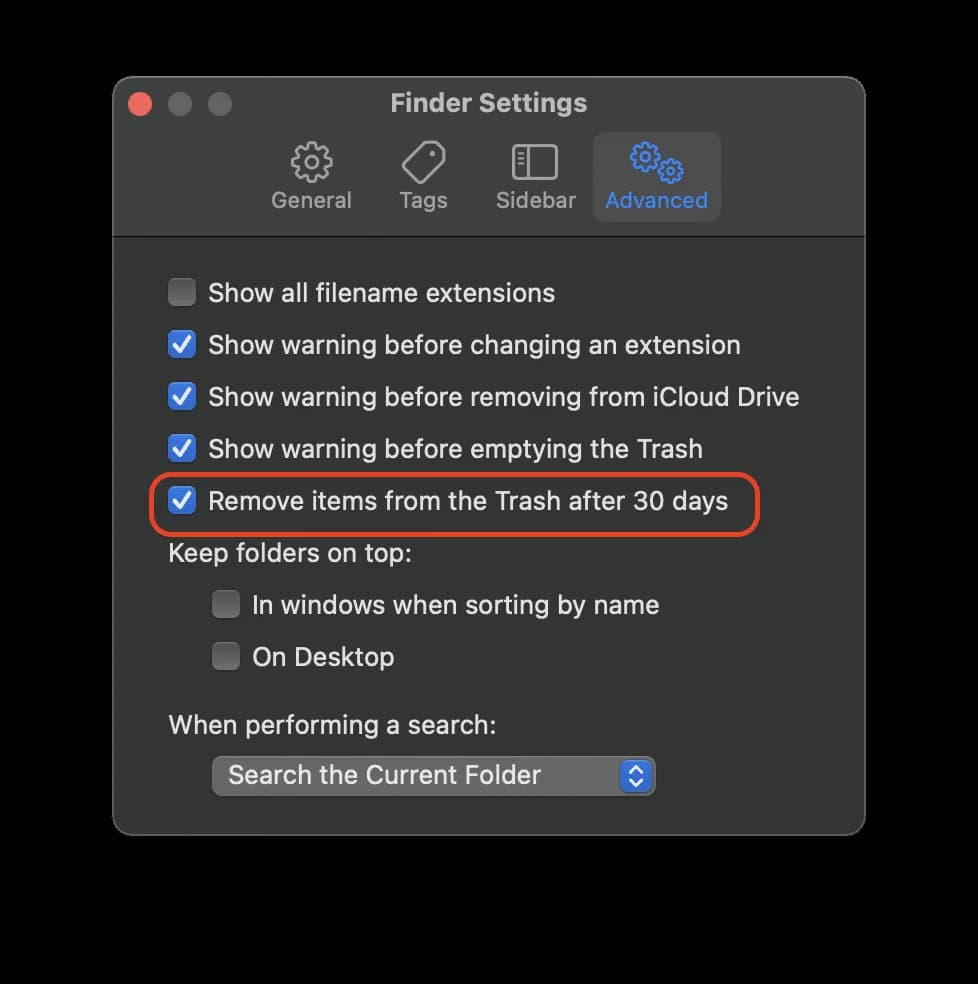
- Empty Trash automatically: permanently erases items that have been in the Trash for more than 30 days. You can change this in Finder, under Finder > Settings > Advanced, with the option "Remove items from the Trash after 30 days".
If you use Photos, check that Optimize Mac Storage is on in the Photos settings. It keeps full-size photos in iCloud and smaller versions on the Mac. See Apple's Photos guide for the steps.
What is cache on a Mac, and is it safe to clear?
A cache is temporary data that apps and the system keep so things load faster. Deleting a cache is generally safe, because apps rebuild what they need. The downsides are small: an app can open a little slower the first time afterwards, and clearing a browser's cache and site data can sign you out of websites.
There are three kinds:
- System cache: managed by macOS. Leave it alone. Apple says macOS clears safe caches itself when it needs space.
- App (user) cache: stored in your Library folder, one folder per app.
- Browser cache: pages, images and scripts your browser saved from websites.
Clear a cache when you have a reason: a specific app is acting up, a website shows an old version, or you need the space. You do not need to do it on a schedule.
How do I clear app cache on a Mac?
The safe way is to delete only the contents of cache folders for apps you know, one app at a time.
- Quit the app whose cache you want to clear.
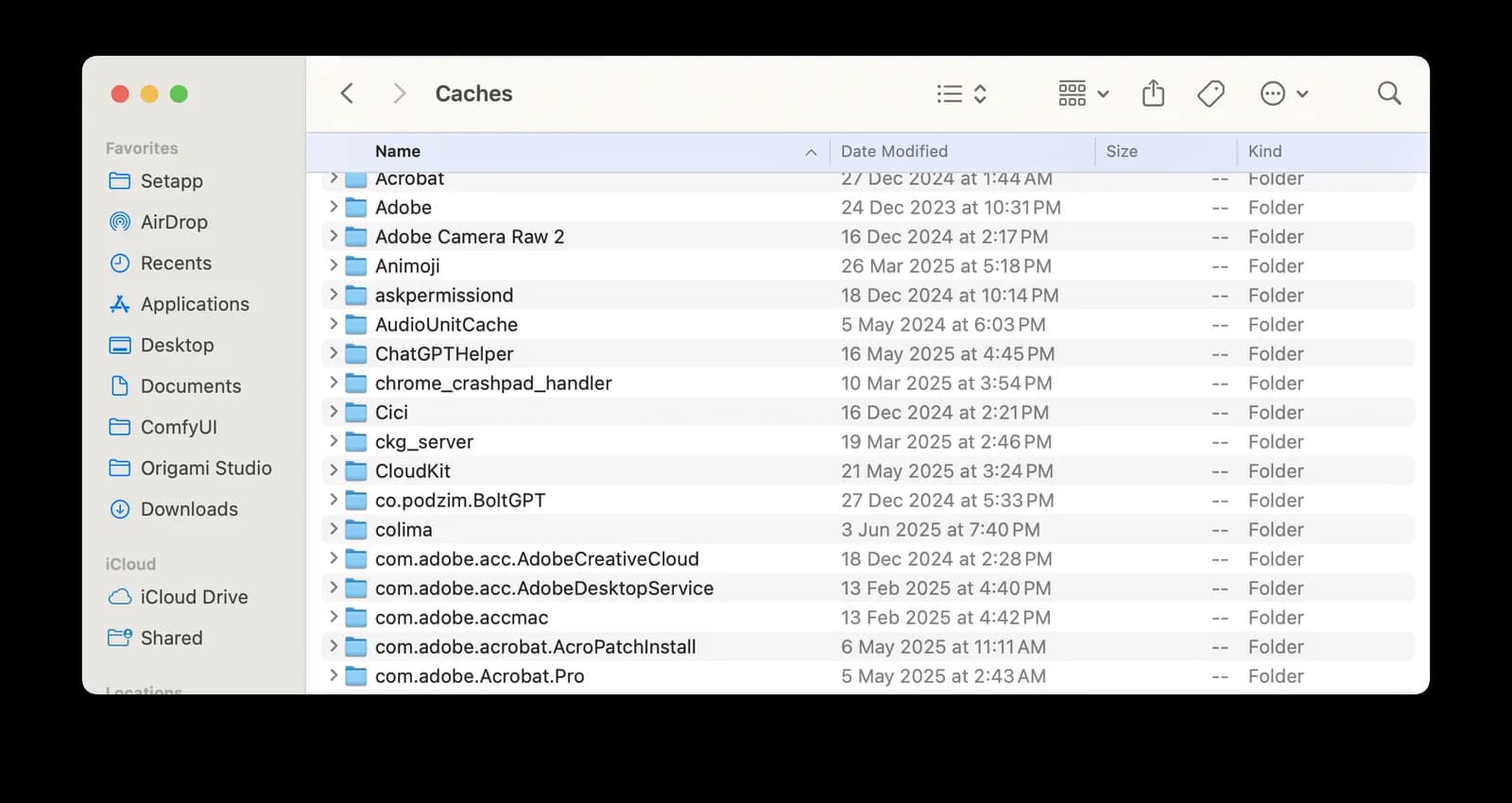
- In Finder, click the Go menu, then choose Go to Folder.
- Type
~/Library/Cachesand press Return. - Open the folder named after the app (or its developer) and drag the files inside to the Trash.
- Empty the Trash.
Some rules that keep this safe:
- Delete the contents of an app's folder, not the Caches folder itself.
- Skip folders whose names start with com.apple. macOS manages those.
- If you are not sure what a folder belongs to, leave it.
- Do not delete anything else in the Library folder. Preferences, Application Support and other folders hold settings and data, not cache.
Should I clear cache with Terminal commands like sudo rm -rf?
No. We removed the Terminal commands that older versions of this guide showed, and we recommend you do not use commands such as rm -rf ~/Library/Caches/* or sudo rm -rf /Library/Caches/*.
The reason is that rm -rf deletes immediately, with no Trash and no undo, and a wildcard with sudo runs with full administrator rights across the system cache folder. One mistyped path can delete something that is not a cache. The Finder method above gets you the same space with a safety net, because you can review what you drag to the Trash.
How do I clear the browser cache on a Mac?
Browser caches are separate from app caches, and each browser has its own menu.
Safari: choose Safari > Settings, click Privacy, then Manage Website Data. Select sites and click Remove, or Remove All. Apple notes this can sign you out of websites and may change data used by other apps too.
Chrome: click the three-dot More menu, choose Delete browsing data, pick a time range, tick Cached images and files, and click Delete data. Untick "Cookies and other site data" if you want to stay signed in.
Firefox: open Settings > Privacy & Security, find Cookies and Site Data, click Clear Data, tick Cached Web Content, and confirm.
Which is better: doing it by hand or using a cleaner app?
| Method | Good for | Watch out for |
|---|---|---|
| Storage settings and Apple's recommendations | Safe first steps, no extra software | Does not clear app caches |
| Finder (manual) | Full control, free | Slow, and easy to delete the wrong thing if careless |
| Browser settings | Website problems | Only covers that browser |
| A cleaner app | Saves time when you do this often | Paid, and you should still review what it removes |
If you want a tool for this, CleanMyMac is one option, and it is a product we sell as an authorized MacPaw reseller. Its Cleanup tool groups junk such as user cache files and logs so you can review them before removing anything, and its Space Lens shows your storage as bubbles sized by folder or file, per MacPaw's support pages. It runs on macOS 11 or later. You can see the plans on our CleanMyMac page. Everything in this guide can be done without it, so use it only if you would rather not do the sorting by hand.
How do I stop my disk from filling up again?
- Check General > Storage once a month to see which category is growing.
- Treat Downloads as temporary. Delete installers after you use them.
- Turn on Empty Trash automatically in the Storage recommendations.
- Keep big media on an external drive or in iCloud.
- Restart now and then. Apple notes that starting in safe mode clears certain system caches, which return as needed.
FAQ
How do I free up space on my Mac quickly?
Empty the Trash, delete big files and unused apps, and check System Settings > General > Storage for the biggest categories. Those steps usually free more than clearing caches.
Is it safe to delete files from the Caches folder?
Deleting the contents of an app's folder inside ~/Library/Caches is generally safe, as long as you quit the app first and leave the folders named com.apple alone. Do not delete the folders themselves, and do not touch other Library folders.
Does clearing cache make my Mac faster?
Only in specific cases, such as a corrupted app cache. Caches exist to make things faster, so clearing them can make apps load slightly slower at first.
Can I delete System Data on Mac?
Not as a whole. It is a mix of caches, logs and support files that macOS manages. Free space with the safe steps above instead.
Does storing files in iCloud free up space?
Yes. With Store in iCloud, original files move to iCloud and only recently opened files stay on your Mac. Files in iCloud count against your iCloud storage plan.
Is the process the same on every Mac?
Yes, on MacBook Air, MacBook Pro, iMac, Mac mini and the others. The Storage settings and Finder steps are the same.