You can get full NTFS read and write access on a Mac in a few minutes, and nothing on your drive has to move. The easiest way is an NTFS driver: once it is installed, an NTFS drive works in Finder like any other disk. If you would rather not pay, there are two free routes too. This guide goes from cheapest to easiest, so you can stop reading at the step that is enough for you.
Here is probably how you got here. You took an external drive from a Windows PC and plugged it into your Mac. You can see every file and copy them off. But when you try to drag a new file onto it, the Mac refuses, or tells you the drive is read-only. Can a Mac read NTFS? Yes. Can it write to NTFS? Not by default. The drive is not broken, and neither is your Mac.
Why can't a Mac write to NTFS?
NTFS is Microsoft's file system, and most Windows drives use it. NTFS on Mac works for reading, but macOS keeps writing switched off. iBoysoft explains that this is a stability decision, not a fault with your Mac.
That leaves two directions: add a tool that can write NTFS, or switch the drive to a format that both systems can write. The three steps below cover both, and the third is the easiest version.
Two questions to ask before you start
- Can I copy everything off this drive first? If yes, changing the format is an option. If not, you need a tool.
- Will I move between Mac and Windows often? For a one-off job a free route is enough. If you do it every day, ease matters more than price.
Step 1: a free NTFS for Mac option, Mounty
Mounty is a free utility. After you install it, an icon appears in the menu bar, and when you plug in a read-only NTFS drive it offers to remount it as writable.
It is less simple than it used to be. Mounty's website explains that macOS Ventura removed the built-in remount feature, so Mounty now relies on the open-source NTFS-3G driver and macFUSE, and the site admits installation is more involved. It lists support up to macOS 27.
Is it right for you? If you do not mind following a guide to install a few pieces, and you only need it now and then, it is worth a try. If you want a drive that simply works when you plug it in, read on.
Step 2: no software, switch the drive to exFAT
If you can copy everything off the drive, the cleanest fix is to format it as exFAT. In Apple's Disk Utility guide, the formats for Windows are ExFAT for volumes over 32 GB and MS-DOS (FAT) for volumes of 32 GB or less. Once the drive is exFAT, both Mac and Windows can read and write it with no driver.
There are two costs. Formatting erases the drive, so back it up first. And exFAT does not have some Windows-specific features that NTFS has.
Is it right for you? If the drive exists mainly to move files between two systems, or the contents are easy to back up, switching the format is the least hassle.
Step 3: the easiest option, an NTFS driver
If the drive's contents cannot move and you use it on both systems often, a paid NTFS driver is the smoothest answer. You do not reformat anything, and you do not mount the drive by hand each time. The NTFS drive behaves like a normal disk in Finder.
There is more than one product here. If you were looking at Paragon NTFS for Mac and want to see the alternatives, this is where to compare. All three vendors say they support macOS 27 and Apple silicon. The differences:
- Microsoft NTFS for Mac by Paragon: Paragon says you can try it free for 10 days, after which it is locked until you buy a license.
- Microsoft NTFS for Mac by Tuxera: Tuxera offers a 14 day free trial and includes a companion app to format, check and repair NTFS drives.
- iBoysoft NTFS for Mac (the one we sell): iBoysoft says it supports Intel and Apple silicon Macs and macOS from 10.13 to 27, can read and write a Windows BootCamp partition, and can format drives to NTFS. It says you do not need to reformat the drive or run commands to write to NTFS.
Why iBoysoft is worth a look
- You choose how it mounts. iBoysoft lists three modes. Simple mode uses the NFS protocol and you mount each drive by hand. Extension mode uses Apple's FSKit framework, needs no kernel extension, and requires macOS 26 or later. Advanced mode uses a kernel driver and mounts automatically, but on Apple silicon you first allow the system extension in macOS.
- There are published speed numbers. iBoysoft's own test lists about 433 MB/s write and 444 MB/s read on a USB 3.0 SSD, and about 970 MB/s write and 1,100 MB/s read on a Thunderbolt 4 SSD. This is the vendor's test, and your speed depends on your drive and connection.
- It feels like a normal disk. Dragging, copying and deleting in Finder work as they do on a Mac's own drive.
One of us has used iBoysoft NTFS for Mac briefly and found it stable and pleasant to use. That was a short trial, not a systematic test.
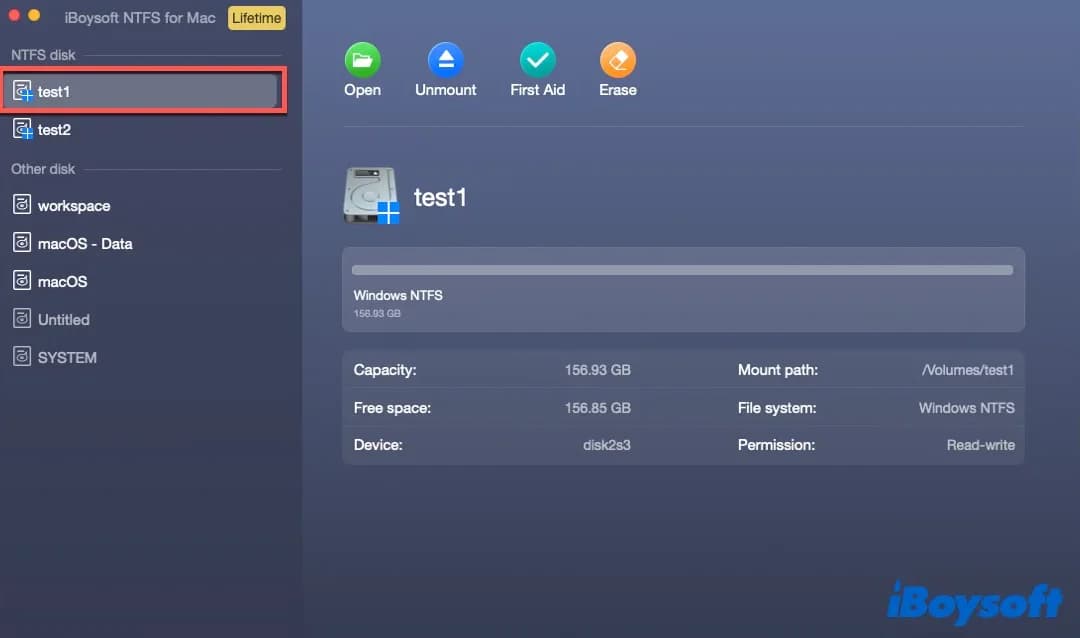
The main window lists your NTFS disks, with capacity and mount path, and the permission column shows Read-write. Screenshot from iBoysoft's official product page.
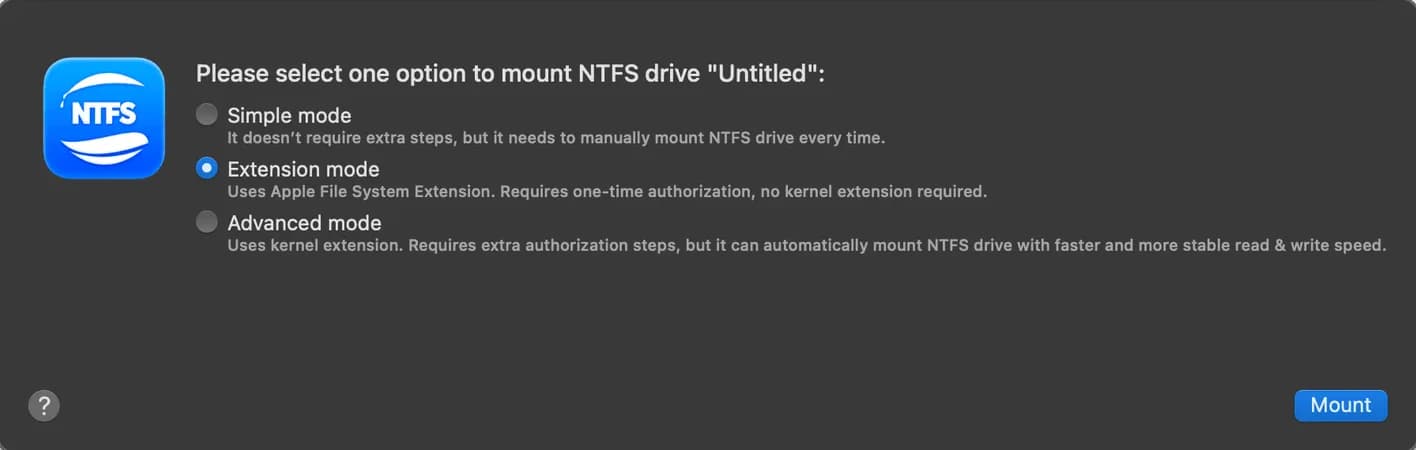
The first time you mount an NTFS drive, iBoysoft asks which mounting mode to use. Screenshot from iBoysoft's official product page.
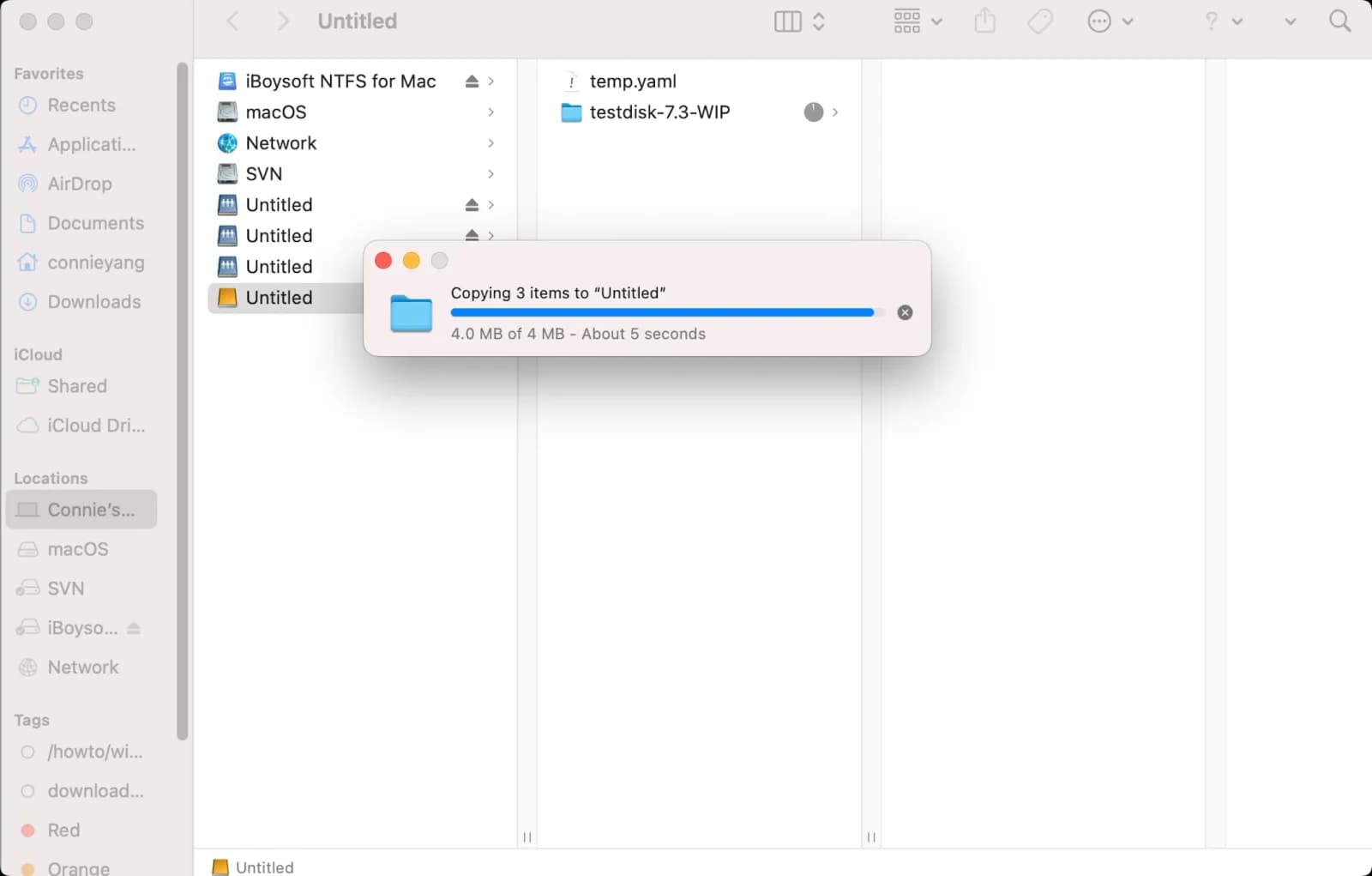
Once installed, you copy files to the NTFS drive directly in Finder. Screenshot from iBoysoft's official product page.
Check these before you choose
- Can you try it first? Paragon offers 10 days and Tuxera offers 14. Installing one and trying it beats reading reviews.
- Is the drive encrypted? iBoysoft's FAQ says it cannot mount NTFS drives encrypted with BitLocker. If you encrypted the drive on Windows, confirm that the tool you pick supports it.
- Does the drive work at all? The same FAQ says that if macOS Disk Utility cannot recognize the drive, these tools cannot either, so check the drive and the cable first.
So which step should you take?
- A one-off job, and you do not mind some setup: Step 1, Mounty.
- You can copy everything off, and want a drive that works on both systems from now on: Step 2, exFAT.
- The contents cannot move and you switch between Mac and Windows often: Step 3, an NTFS driver, the easiest of the three.
Buying from Appicker
We sell the iBoysoft NTFS for Mac 9 perpetual license. See the iBoysoft NTFS for Mac product page. Before you buy:
- One license covers one Mac.
- It activates only the DMG version downloaded from the iBoysoft website. It does not activate the Mac App Store version.
- It works on macOS 27 and earlier. Updates within version 9 are free. A future version 10 or later is not included and has to be bought separately.
- After payment, your key arrives on your order page and by email within 24 hours.
- Basic and Pro differ only in copy speed, as listed on the product page. Everything else is the same.