AOMEI Backupper is worth using. It makes Windows backup simple: pick what to back up, pick where it goes, press start, and set it to run every day or week on its own. It can also move your whole system to a new SSD without reinstalling Windows, and there is a free edition to try first. TechRadar's review calls it easy to use, packed with features and not particularly expensive. If you use Windows at home and want a clear, dependable backup tool, this is a good choice.
Why you need backup software in the first place
Nobody knows when a drive will fail, and by the time it does it is usually too late to plan. Backup software does one simple job: it regularly copies your system, files or a whole disk somewhere else, so you can restore after something goes wrong.
Windows has its own backup tools, but many people want a clearer interface and more options, such as moving the whole system to a new SSD. That is when they look for third-party software, and AOMEI Backupper is one of the names that comes up most.
Who makes it, and which editions exist?
According to TechRadar, AOMEI was founded in China in 2009, and Backupper is its most popular product, available since 2012. There are several editions:
- AOMEI Backupper Standard: the free edition. TechRadar calls it a great start for anyone who needs basic backup.
- Professional: the paid edition for personal use, one PC per license.
- Workstation: for business PCs.
- Server: for Windows Server.
- Technician and Technician Plus: for technicians who manage many PCs or support clients as a paid service.
You can see all editions on the AOMEI website. For home use, Professional is the usual choice.
What is it like to use?
TechRadar describes it as straightforward to install and use. The home screen shows your recent backups. To create a new one, you choose the type of operation, the data and the destination, then start right away or open a few simple windows for advanced settings. Tabs along the left edge hold sync, restore, clone and other tools, and TechRadar says the consistent design means people get up to speed quickly.
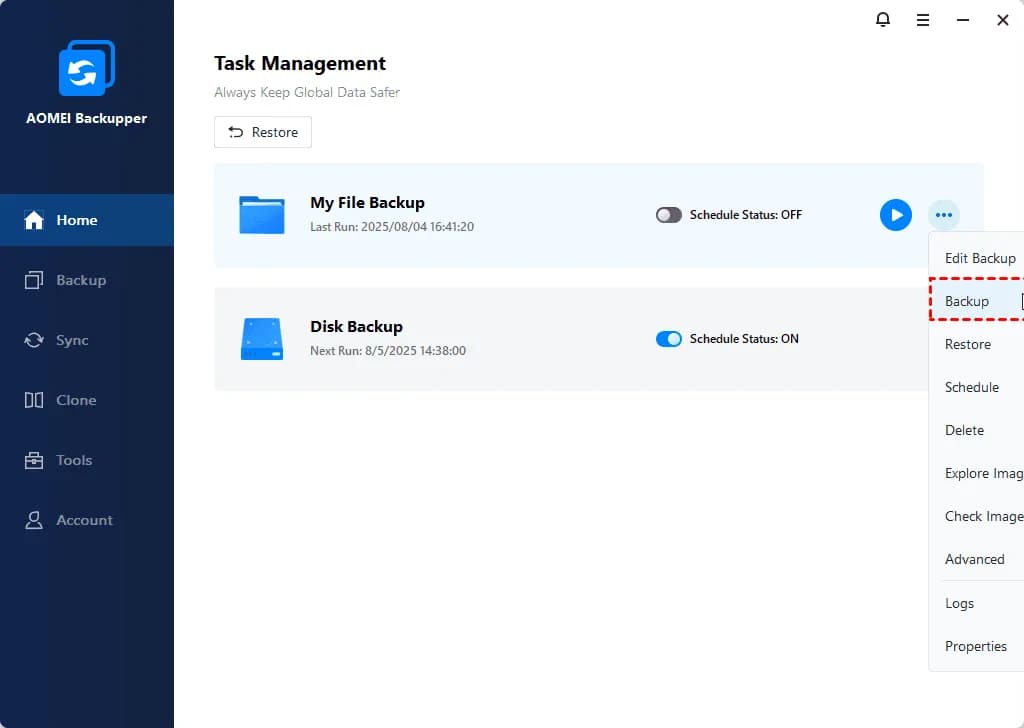
The AOMEI Backupper Professional window. Screenshot from our product page.
What can it do?
Based on what we know of the software and TechRadar's description, Professional can:
- Back up your whole system, a disk, a partition or selected files, plus Outlook email. Full, incremental and differential methods are supported. Incremental and differential only copy what has changed, which saves space and time.
- Run on a schedule: daily, weekly or monthly, or triggered by events such as logon, startup, shutdown or plugging in a USB drive.
- Clone and migrate: move Windows to an SSD or a larger disk without reinstalling. Disk and partition clone includes MBR and GPT conversion.
- Sync and restore: basic, real-time, mirror and two-way sync, restore to different hardware, and bootable rescue media for a PC that will not start.
- Extras: TechRadar also mentions disk wiping, image checking and iPhone backup.
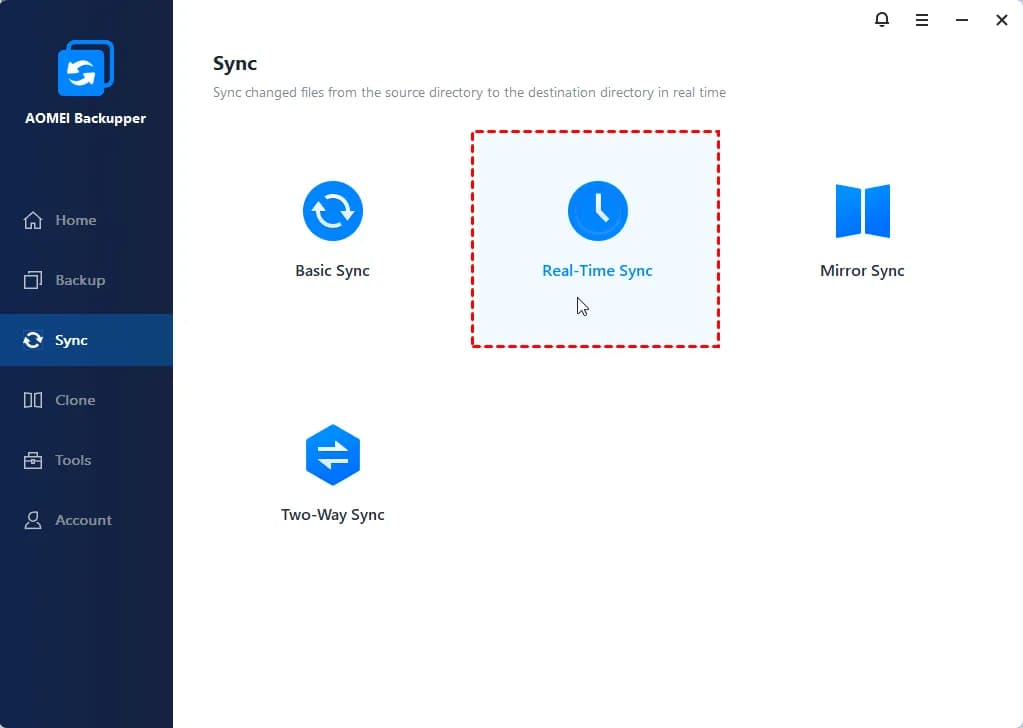
Another screen of the software. Screenshot from our product page.
How fast is it?
TechRadar tested nearly 20 backup apps with a 42 GB document folder, a 162 GB media folder and more. AOMEI backed up the documents in an average of 26 minutes 23 seconds, right in the middle of the pack, and its best result was 26 minutes 46 seconds on mixed media, which put it in the top half. TechRadar sums it up as a good all-rounder with moderate speed, and notes that EaseUS, O&O and Macrium were faster in its tests. If you are weighing AOMEI Backupper vs Macrium Reflect, that is worth knowing.
Which edition should you pick?
Our advice:
- Your own Windows PC at home: Professional.
- A work PC in a company: Workstation.
- Windows Server: Server.
- Many PCs, or a paid service for clients: Technician, or Technician Plus if servers are included.
For one PC, Professional is enough. If you want to try first, install the free Standard edition and upgrade if you need more.
Check these before you buy
- Windows only. Professional supports Windows 11, 10, 8.1/8 and 7 and does not run on a Mac. AOMEI also has a separate product called AOMEI Backupper Mac.
- One license covers one PC, for personal use. For a business PC, choose Workstation.
- Support is by email. TechRadar notes paid customers reach AOMEI through a support email, with no live chat or phone. The AOMEI site has tutorials, user guides and documentation.
So who is it for?
- A good fit: Windows users at home who want a clear backup and clone tool, and anyone moving their system to a new SSD.
- Not sure yet: try the free Standard edition first and upgrade if it is not enough.
Buying from Appicker
We sell AOMEI Backupper Professional licenses. See the AOMEI Backupper Professional product page. There are two plans: lifetime upgrades for 1 PC, or 1 year for 1 PC. After payment, your key arrives by email within 24 hours.