The Best OCR Software for Mac in 2026: 7 Apps Tested (Free & Paid)
I installed seven Mac OCR apps and ran the same messy, two-column PDF through all of them. Here’s what actually happened, including the ones that choked.
TL;DR: For grabbing a line of clean printed text, macOS Live Text (free) or TextSniper does the job fine. For most people who want one app that handles the harder stuff too (PDFs, Markdown output, handwriting, math, all offline), ZenOCR is our overall pick. If raw language count is your priority, ABBYY (192 languages) and Prizmo (139) have the edge there, though ZenOCR’s underlying models cover close to 100 languages according to their research papers.
What to Look for in a Mac OCR App
Before I get into the tools, here’s the short checklist I used. Depending on your situation, some of these matter a lot more than others.
Accuracy on messy input. Clean, laser-printed text? Everything here handles it. Scanned PDFs with skew, handwritten notes, tables, or math: that’s where things fall apart fast.
Offline / privacy. If you’re OCRing contracts, medical records, client files, or anything you’d rather not email to a stranger, pay close attention to which tools send your document to a cloud server. Some do this by default and tell you in the fine print.
PDF support and Markdown output. Plain text is fine for a quick copy-paste. But if you want to actually use what you extract (pipe it into a notes app, feed it to an LLM, build a searchable archive), getting clean Markdown with headings, tables, and equations preserved is a different problem entirely.
Batch processing. One-offs are easy. Processing 200 scanned invoices is not. Most tools here handle single files; only a couple support batches.
Price. I’ve tried to include free and paid options at different price points. “Subscription only” is a dealbreaker for some people; others don’t mind.
Quick Comparison Table
| Tool | Fully Offline? | PDF→Markdown? | Handwriting? | Screenshot→Clipboard? | Price |
|---|---|---|---|---|---|
| ZenOCR | Yes | Yes | Yes (local) | Yes | $12.99 one-time |
| TextSniper | Yes | No | No | Yes | ~$8 to $12 one-time |
| OwlOCR | Yes | No (plain text) | No | Yes | Free / $49.99 lifetime |
| Prizmo | No (cloud, Azure) | No (DOCX only) | Yes (cloud only) | No | $99.99 one-time / $49.99/yr |
| ABBYY FineReader (Mac) | Local | No (DOCX/XLSX) | No (Mac version) | No | $69/yr, subscription |
| macOS Live Text | Yes | No | Marginal | Indirect | Free (built-in) |
| CleanShot X | Yes | No | No | Yes (secondary) | $29 + $19/yr |
macOS Live Text: The Free Starting Point
Best for: grabbing a line of text from a photo or screenshot you already have open.
Live Text is baked into macOS and available everywhere: Photos, Quick Look, Preview, Safari. Hover over text in an image and macOS highlights it; you can select and copy it in a second. It runs on-device, it’s instant, and it costs nothing.
The ceiling is low. Live Text does not accept a drag-and-drop file. There’s no hotkey capture flow. Handwriting recognition is marginal: I watched it confidently turn “y” into “v” three times on the same note. And it produces plain text only, no structure.
Verdict: If your use case is “I see a phone number in a screenshot and I want to copy it,” open Photos or Preview and use Live Text. You don’t need to download anything. If you need to process a PDF, extract a table, or handle handwriting reliably, you’ve already outgrown it.
TextSniper: The Lightest Dedicated Capture Tool
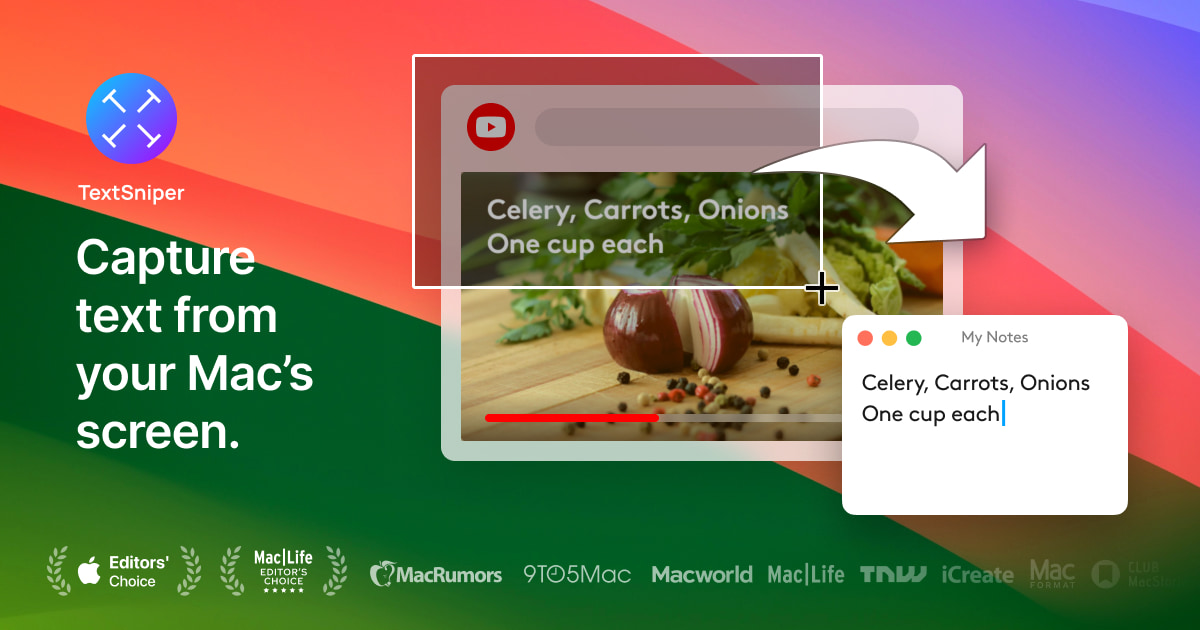
Best for: power users who want a hotkey-triggered screen capture without any extra features in the way.
TextSniper lives in the menu bar, and that’s about all it does. Hit the hotkey, draw a box, text lands in your clipboard. The UX is as fast and frictionless as it gets. It runs locally using Apple Vision, so it’s fully offline with no privacy concerns.
It does not handle PDFs in any meaningful way. Handwriting is not supported, clean printed text only. No Markdown output. No batch processing.
It’s worth noting that ZenOCR’s Fast mode uses the same Apple Vision engine under the hood, so on clean printed text the accuracy between the two is essentially the same. If you only need that and want the absolute lightest tool, TextSniper is a solid pick. At around $8 to $12 one-time, it’s also the cheapest dedicated option here.
Verdict: The best minimal capture tool. Buy it if you want exactly one thing done well: screenshot-to-clipboard, fast, local.
ZenOCR: Best for Offline, Privacy, and PDF→Markdown
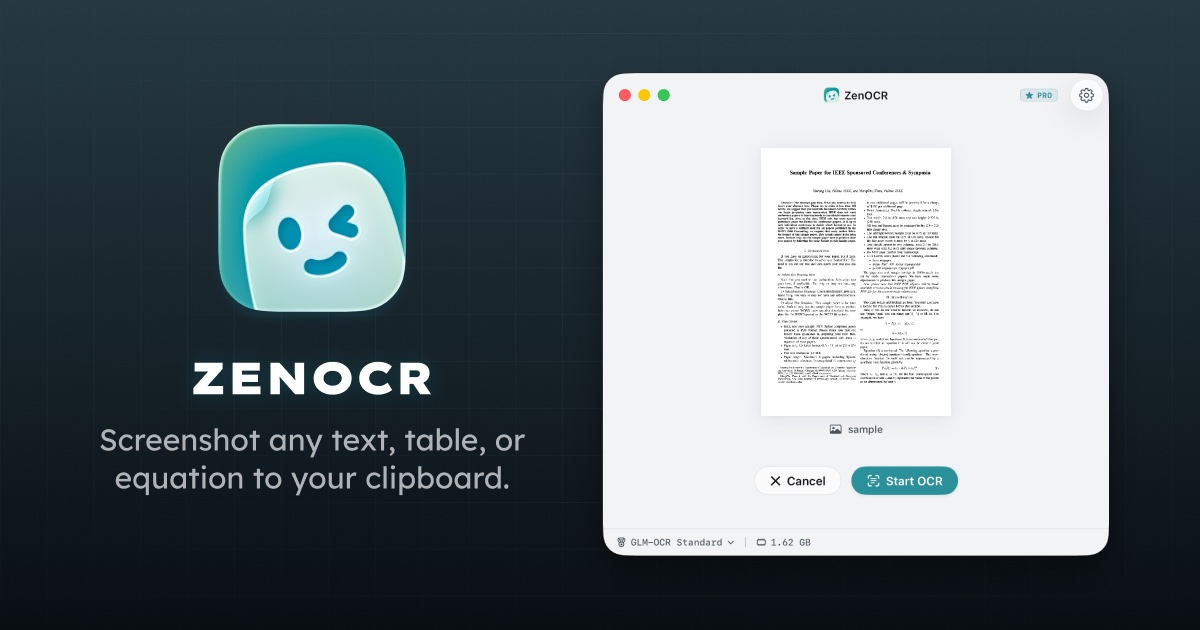
Best for: offline privacy-sensitive docs, complex PDFs, handwriting, tables, math, and anyone who wants to convert documents to Markdown.
ZenOCR is the tool I kept reaching for once the documents got hard. It lives in the menu bar, press a hotkey, draw a selection box, done. Or drag any image or PDF onto the app and it extracts the content. No account required. No network calls ever. You can verify this by turning off Wi-Fi and running it, nothing breaks.
It has two modes:
Fast mode uses Apple Vision, exactly the same engine as macOS Live Text and TextSniper. For clean, printed text it’s instant. Text goes straight to clipboard. This is the default for quick grabs.
AI mode is where things get interesting. It runs GLM-OCR and DeepSeek-OCR2 locally on your machine, using the Apple Neural Engine. The models download on first launch (one time) and then work fully offline forever. On a complex two-column PDF with a table and a LaTeX equation, AI mode returned clean Markdown with the table structure intact and the equation formatted in LaTeX. That’s a result I couldn’t get from anything else here.
For handwriting, GLM-OCR handles it well. In my testing it handled a batch of math equations and tables surprisingly well. It’s a natural fit for confidential documents, since nothing ever leaves your Mac. It’s also well suited to converting piles of old PDFs into Markdown for a personal knowledge base.
On language coverage: AI mode is broader than it looks. The DeepSeek-OCR research paper states it can handle “nearly 100 languages” in PDF documents. GLM-OCR’s makers officially list 8 languages (Chinese, English, French, Spanish, Russian, German, Japanese, Korean) but report 100+ in internal evaluation. I’d attribute that to the research rather than state it as a guarantee. Fast mode via Apple Vision covers a couple dozen additional languages including Arabic, several European languages, and more CJK variants.
A few honest limitations: AI mode requires an Apple Silicon Mac (M-series), and Intel Macs are not supported. Code blocks are not fenced in the Markdown output. Batch processing is not available yet (it’s on the roadmap, according to the developer on Reddit). One-time $12.99, with a 7-day free trial.
This is the OCR app for Mac that goes furthest when the input is hard.
Verdict: If you’re OCRing anything you wouldn’t want to upload to a stranger’s server, or if you need the output in Markdown for actual use downstream, ZenOCR is the standout here. It’s the only tool in this list that’s both fully offline and capable of structured output. The $12.99 one-time price is fair for what it does.
OwlOCR: Batch-Friendly, No Frills
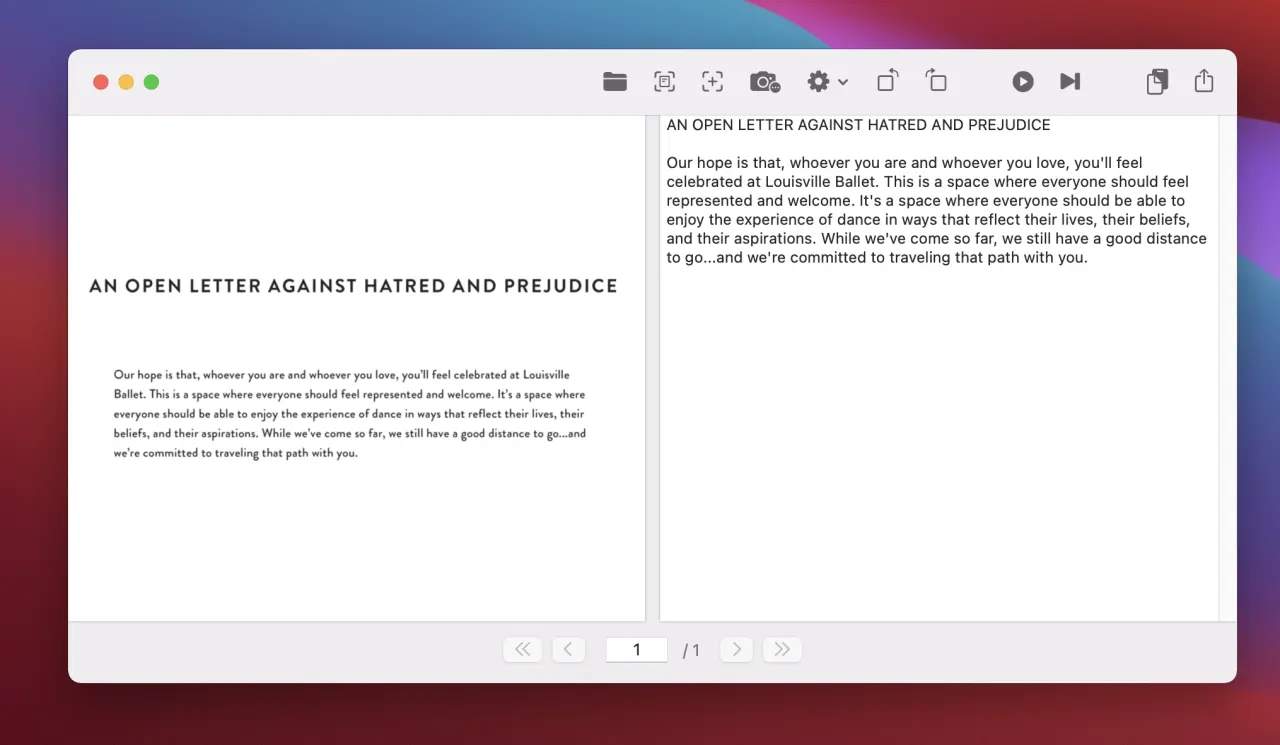
Best for: people who need to batch-process a folder of scanned images and get plain text out.
OwlOCR has a free tier and a $49.99 lifetime license (or $19.99/year). It runs locally, so no upload concerns. The main thing that sets it apart from TextSniper is batch processing and a more document-oriented UI, so you can queue up a folder of images.
Output is plain text. Don’t expect Markdown, tables, or equation formatting. Handwriting support is not advertised. It’s not a screenshot-capture tool in the TextSniper/ZenOCR sense.
Verdict: A reasonable pick if you have a pile of clean scanned documents and want bulk plain-text extraction without paying $70/year for ABBYY. For anything harder, you’ll hit its ceiling quickly.
Prizmo: Powerful OCR, but Your Files Go to Azure
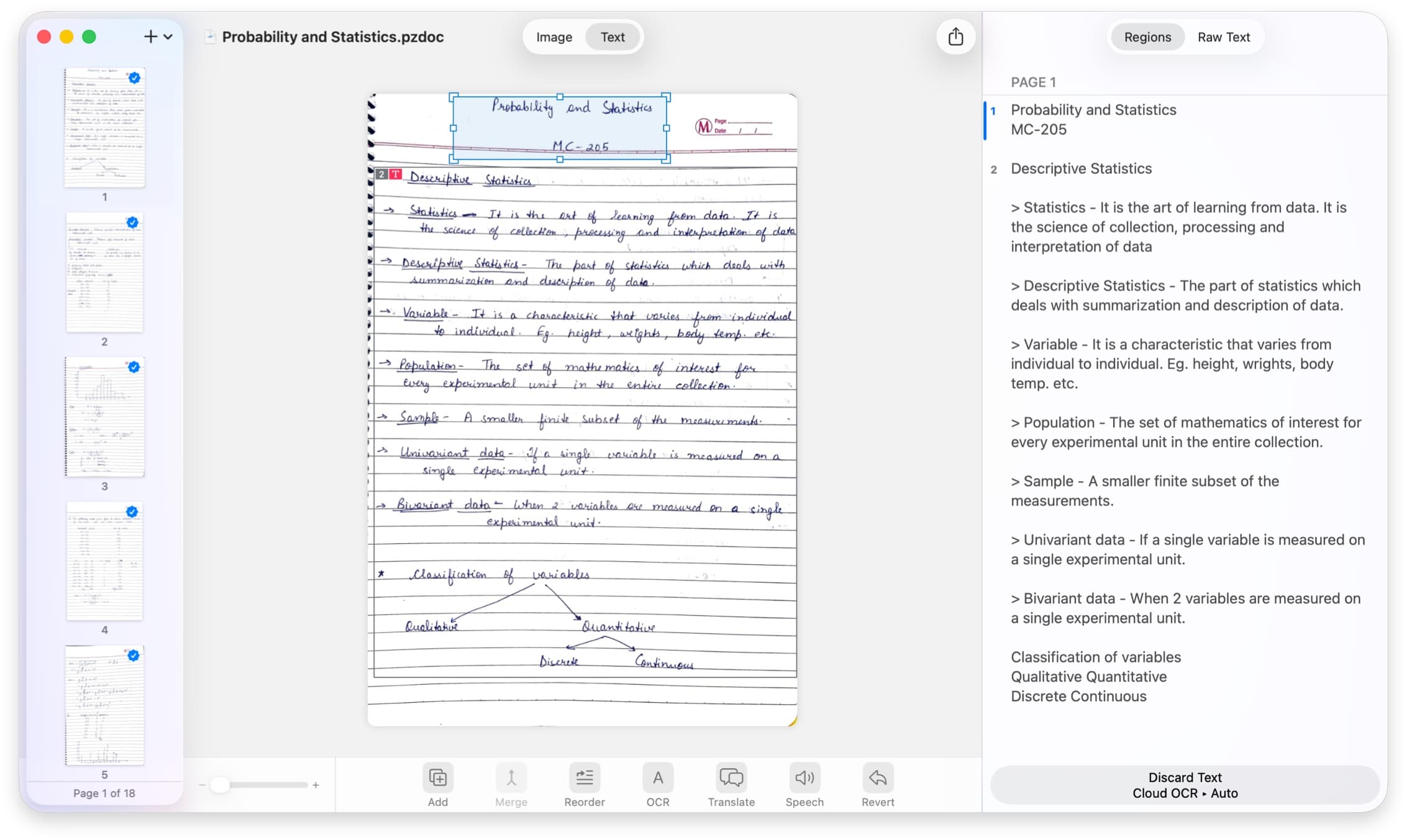
Best for: high language-count requirements where cloud upload is acceptable.
Prizmo’s headline stat is 139 languages, and that’s real. The handwriting recognition is also genuinely capable. If you’re processing documents in less common languages and privacy isn’t a concern, Prizmo does things that most tools here can’t.
The catch: for its best OCR quality and handwriting recognition, Prizmo sends your documents to Microsoft Azure. That’s not a secret (it’s in the documentation), but it’s a meaningful difference from the offline tools above. If you’re processing anything sensitive, you need to decide if you’re comfortable with that.
PDF export outputs DOCX, not Markdown. There’s no screenshot-capture mode. And at $99.99 one-time (or $49.99/year), it’s expensive.
Verdict: If language breadth is your priority and you need 139 languages reliably, Prizmo is a legitimate choice. But I wouldn’t use it for anything I’d consider confidential. The cloud dependency feels like a significant tradeoff for the price.
ABBYY FineReader for Mac: The Language Champ with Real Caveats
Best for: multilingual document workflows where subscription cost isn’t a blocker.
ABBYY FineReader supports 192 languages, which is the highest here by a significant margin. It runs local (not cloud). For pure breadth of language coverage, nothing else here touches it.
The Mac version is considerably less capable than the Windows version, with no native Mac handwriting recognition in the current release. Output goes to DOCX or XLSX, not Markdown. There’s no screenshot-capture tool. And at $69/year subscription-only, you’re paying annually for a tool that’s doing less on Mac than its Windows counterpart.
Verdict: If you’re working across many languages and need maximum coverage, ABBYY wins on that metric. For most Mac users, the subscription cost and reduced Mac feature set make it hard to recommend over the one-time-purchase alternatives.
CleanShot X: Great Screenshot Tool, Decent OCR on the Side
Best for: people who already own CleanShot X and occasionally need to grab text from a screenshot.
CleanShot X is primarily a screenshot and screen recording app. It has a built-in text extraction feature that works fine for plain printed text, it’s quick, on-device, and the results land in your clipboard.
If you don’t already own it, it’s probably not the right purchase for OCR specifically, since you’re paying $29 + $19/year for a screenshot tool that happens to do OCR as a secondary feature.
Verdict: If you own CleanShot X, use the OCR when you need it. If you don’t, there are better-value options for OCR as the primary use case.
Which One Should You Pick?
Here’s how I’d actually decide:
You just need to copy a line of text from a photo or screenshot you have open → Use macOS Live Text. It’s already on your Mac and it’s free. You’re done.
You want a dedicated hotkey screen-capture tool and nothing else → TextSniper (~$8 to $12 one-time) or ZenOCR’s Fast mode. If budget is the deciding factor, TextSniper. If you think you’ll eventually want PDF or AI-mode features, start with ZenOCR.
You’re OCRing confidential documents, contracts, medical records, or anything privacy-sensitive → ZenOCR. It’s the only fully offline, no-account, no-network-call option in this list that also handles complex input. Prizmo’s cloud dependency alone rules it out for this use case.
You want PDF→Markdown output → ZenOCR is the only option here that does this. None of the six competitors produce Markdown.
You need to handle messy handwriting → ZenOCR (local GLM-OCR), or Prizmo if you’re comfortable with Azure cloud upload.
You need the most languages → ABBYY (192 languages, subscription) or Prizmo (139 languages, partly cloud). ZenOCR’s AI mode covers “nearly 100 languages” per the model’s research paper, which covers most real-world cases.
You have a batch of scanned files and want bulk plain text → OwlOCR.
You already own CleanShot X → Use its built-in OCR for quick text grabs; no need to buy anything extra.
FAQ
What’s the best free OCR for Mac?
macOS Live Text is genuinely the best free option. It’s already on your Mac, runs on-device, and handles clean printed text well. Its limitations are no PDF support, no batch processing, and marginal handwriting recognition. For anything beyond quick text grabs, you’ll want a dedicated app.
Is macOS Live Text good enough?
For casual use (grabbing a URL from a screenshot, copying a phone number from a photo), yes. For anything involving PDFs, structured output, handwriting, or documents you’d process regularly, it falls short.
What’s the best OCR scanner for Mac?
Depends what you mean by “scanner.” For screen capture → clipboard: TextSniper or ZenOCR Fast mode. For document/PDF processing with structured output: ZenOCR AI mode. For raw language breadth: ABBYY or Prizmo.
Does ZenOCR work on Intel Macs?
ZenOCR’s Fast mode (Apple Vision) works on macOS 13+, but AI mode requires Apple Silicon (M-series). The local AI models use the Neural Engine, which Intel Macs don’t have. If you’re on an Intel Mac, the AI mode won’t be available.
Is OCR software safe for confidential documents?
It depends entirely on whether the tool processes locally or uploads to a cloud server. ZenOCR, TextSniper, OwlOCR, and ABBYY all process locally. Prizmo uses Microsoft Azure for its best-quality recognition and handwriting, so your document leaves your machine. macOS Live Text is on-device. Always check the privacy policy before running sensitive documents through any tool.
Can ZenOCR handle handwriting?
Yes, through its AI mode using GLM-OCR, which officially supports handwriting. On messy handwriting it performs meaningfully better than tools relying only on Apple Vision. Prizmo also handles handwriting, but via cloud upload. In practice it handles genuinely messy handwriting better than the built-in options.
Ready to try the offline route? Download ZenOCR from the Mac App Store, there’s a 7-day free trial, no account needed, and the AI models install locally on first launch.